Introduction VMware NSX has been providing multi-tenancy capabilities to an SDDC since its inception. There are various ways to achieve it, depending on the use cases. In the simplest architecture, […]
I came across an interesting issue while configuring VRF gateways in NSX 4.x. The configuration was erroring out with the message “Logical Switch trunk-vlan overlapping with another Logical Switch in the same underlying Edge host-switch is not allowed. Change VLAN configuration.”
There was an internal question that came up, and I figured I would write a quick article as I had to grab some screenshots anyway. If you have vSAN Encryption – Data At Rest enabled, how do you verify the disks are actually encrypted? There are a couple of things you can do, and one […]
Overview: Why and When to Replace the vIDM Certificate VMware Identity Manager (vIDM), also known as Workspace ONE Access, uses an SSL certificate to secure its web interface and establish trust with integrated VMware products (like vRealize/Aria Automation and Operations). Replacing this […]
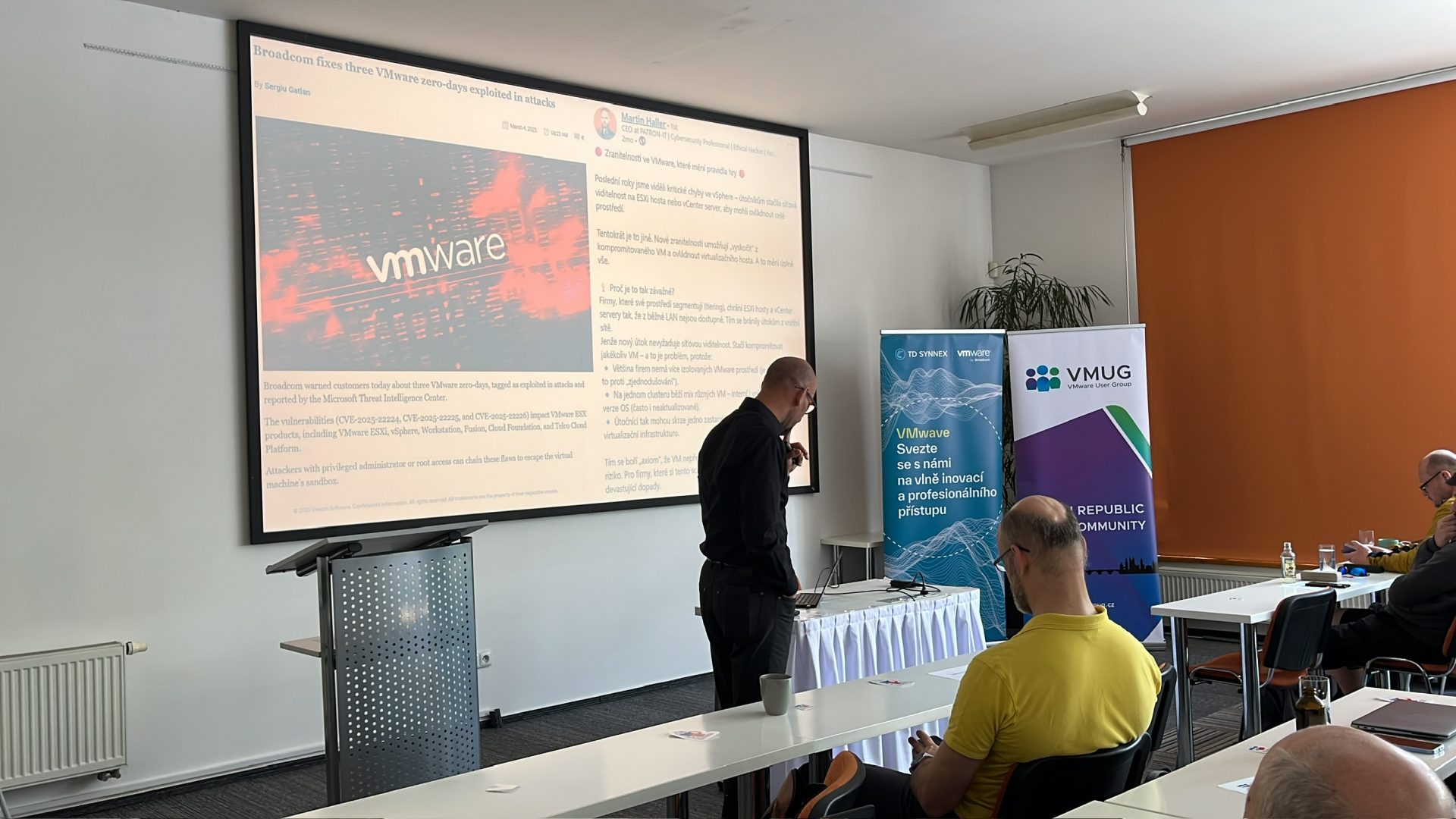
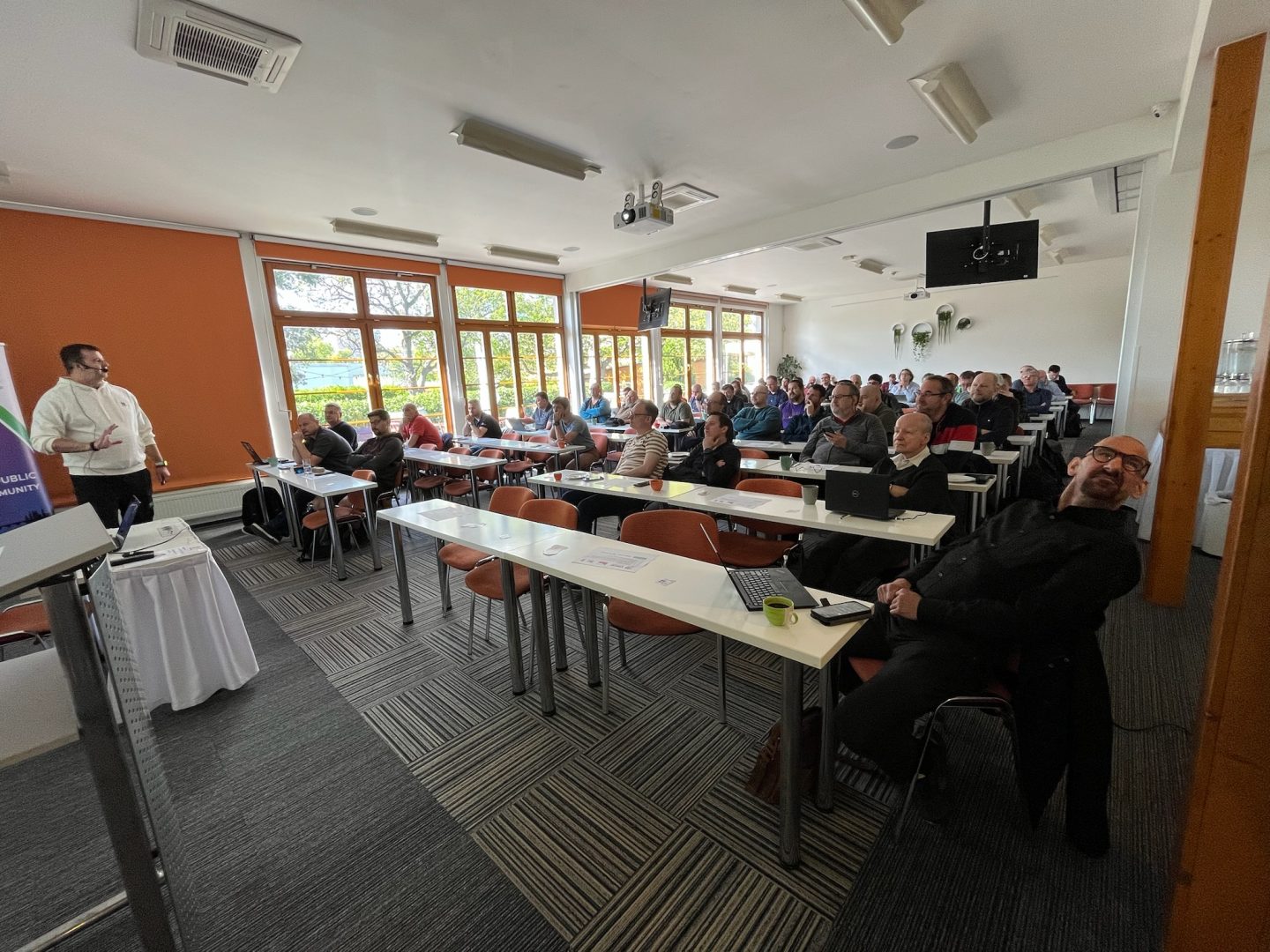
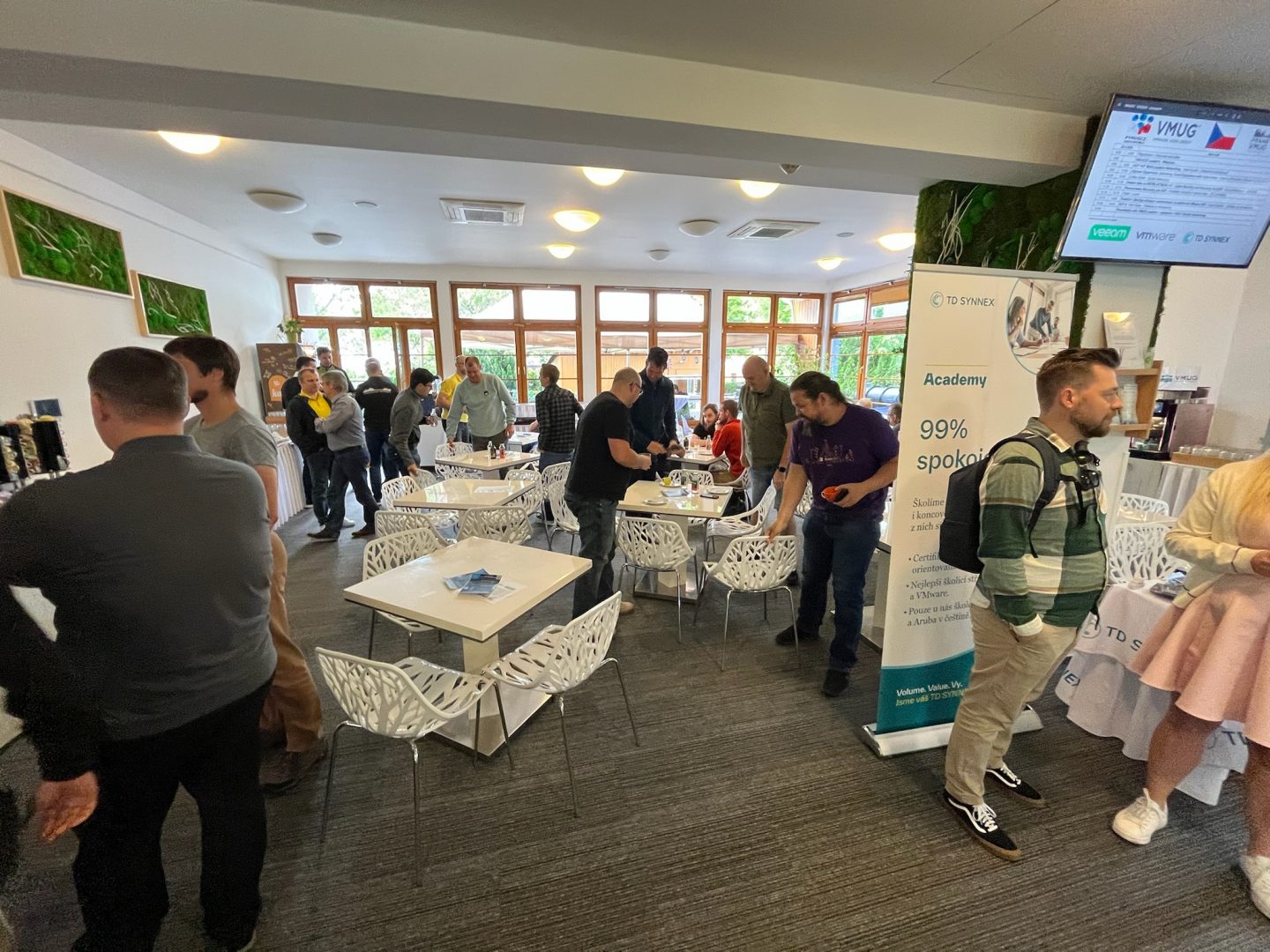
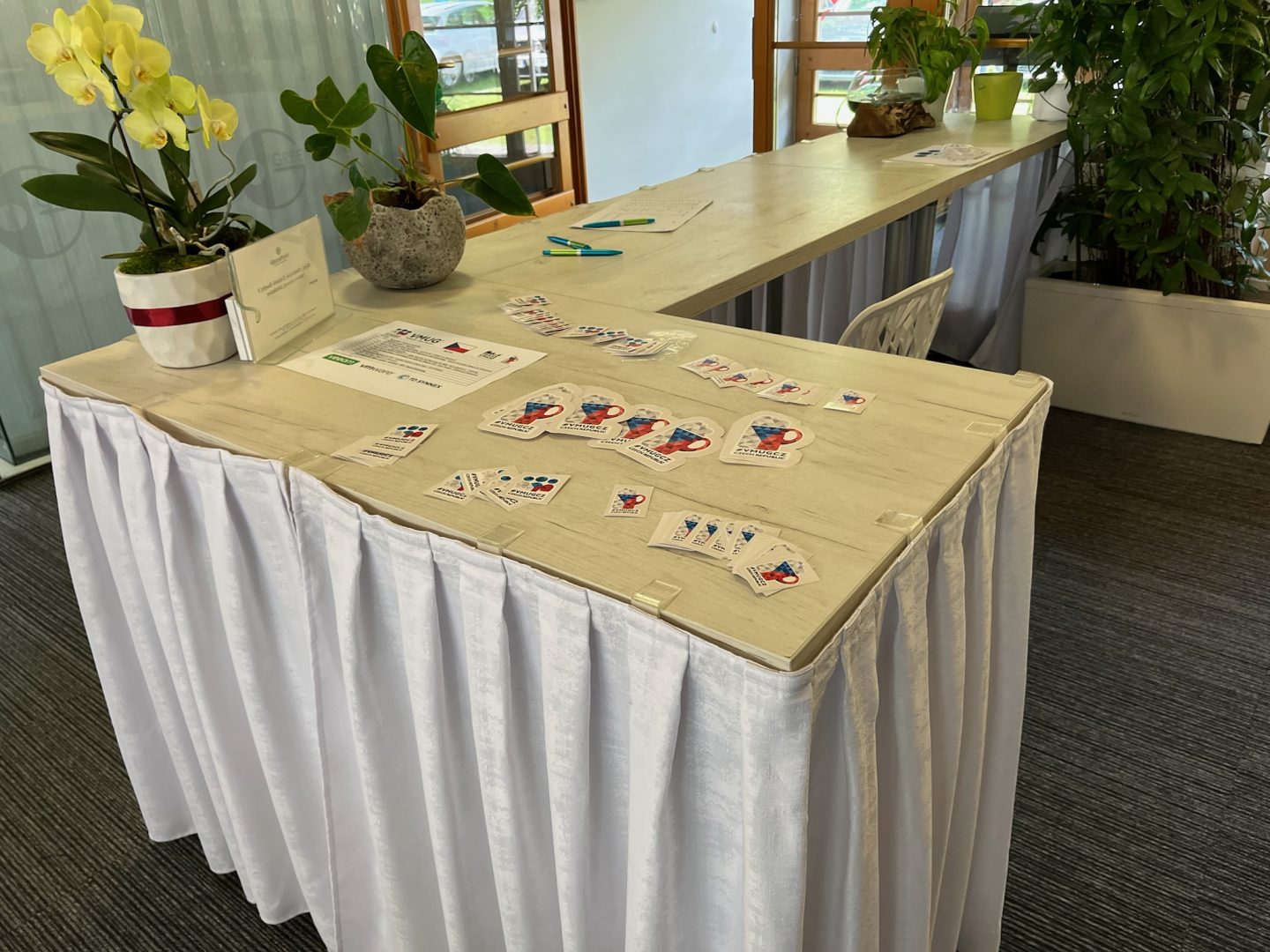
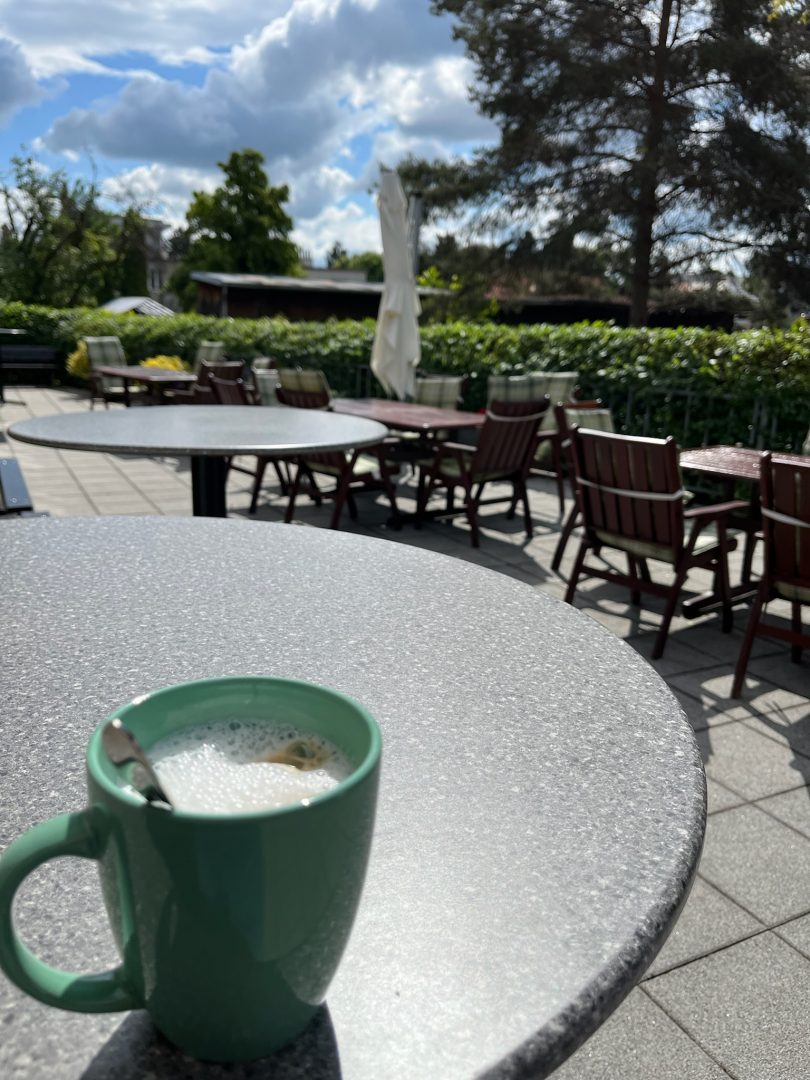
On an inspiring day at Greenpoint Prague, we gathered for the VMware User Group (VMUG) Czech Republic event, which I had the pleasure of organizing alongside Josef Zach. The venue buzzed with energy as we eagerly anticipated a day filled with insightful sessions and vibrant networking.
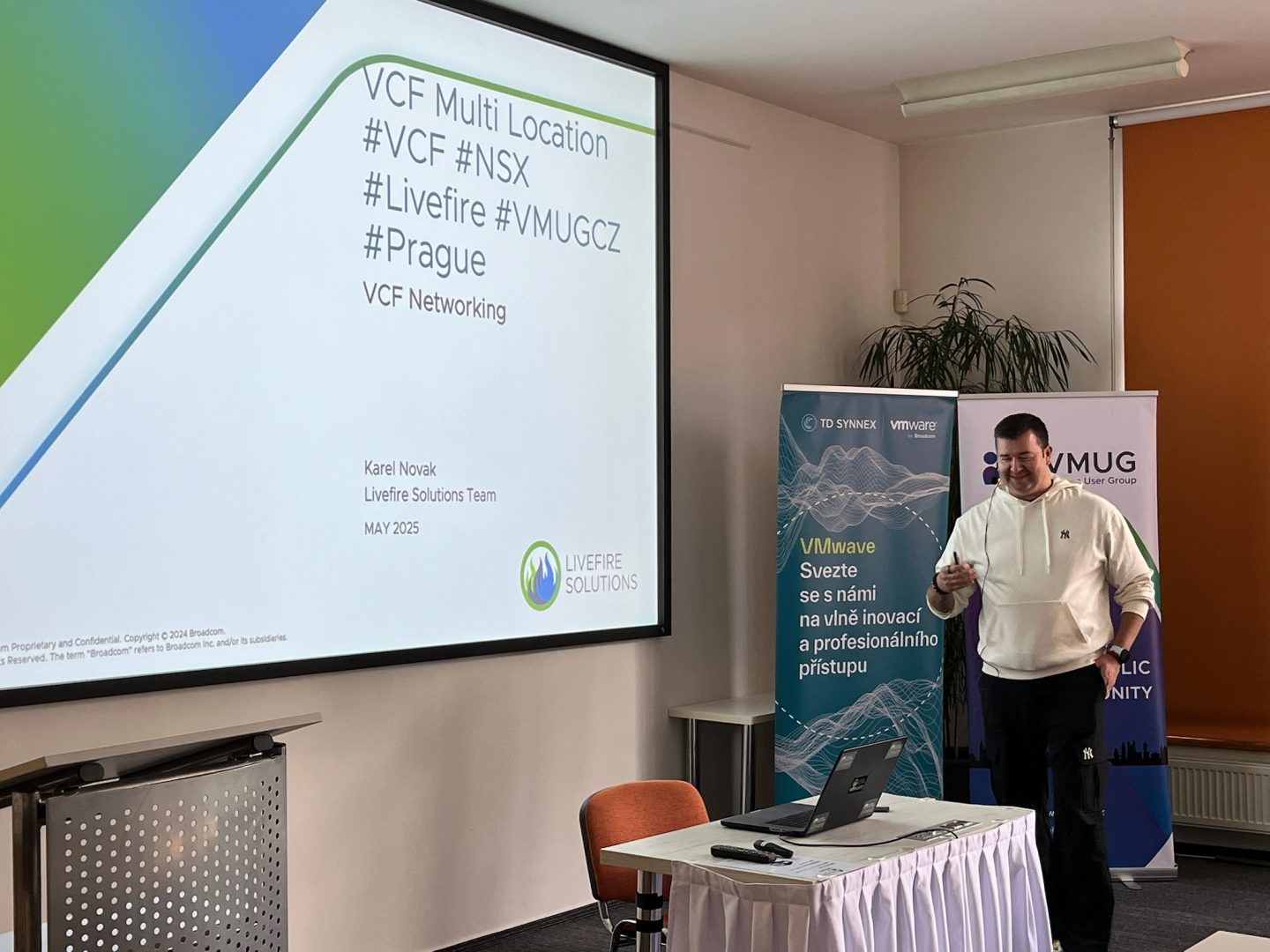
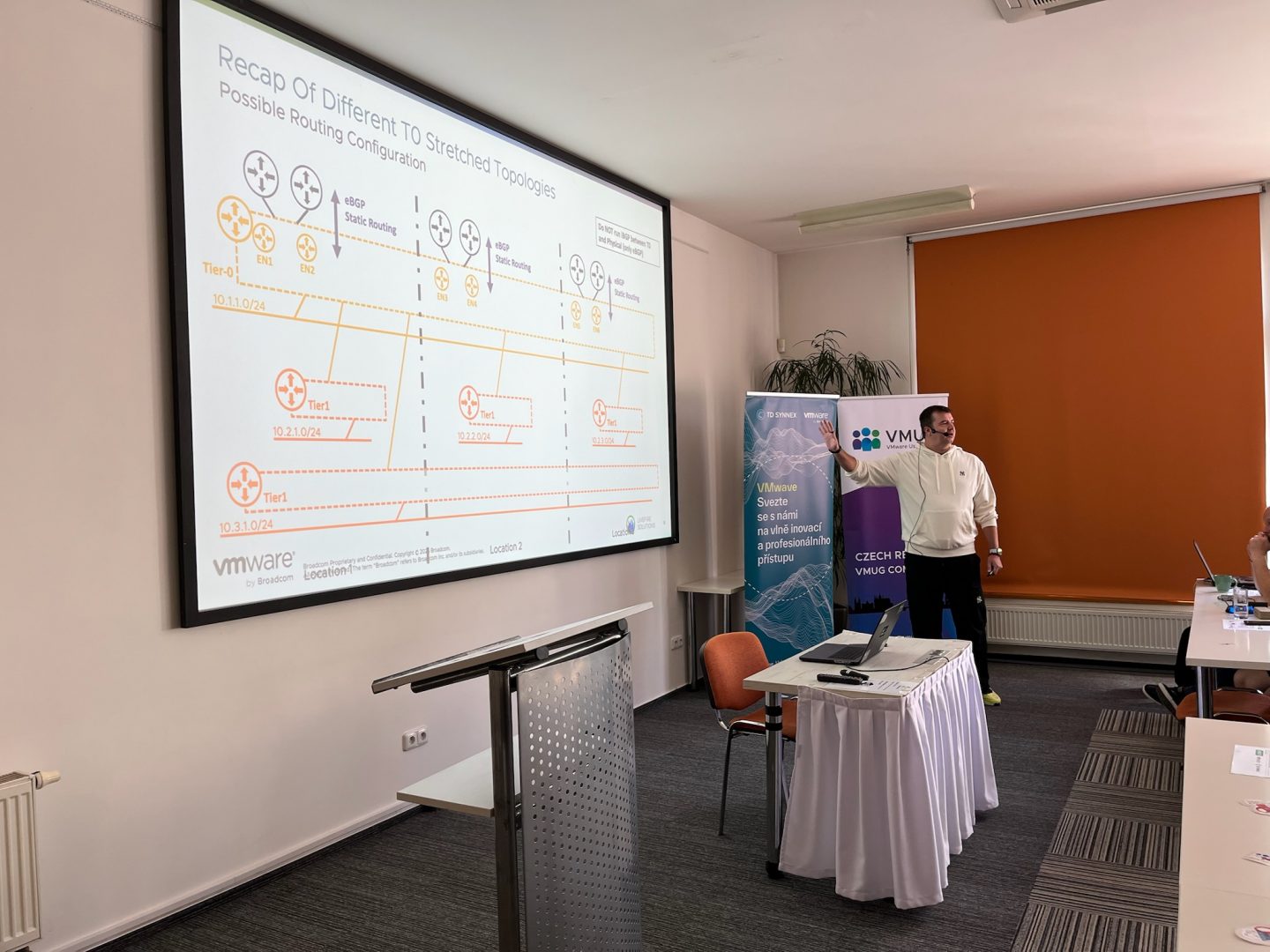
The day started strong with Karel Novak‘s compelling session, “VCF Multi-Location Networking.” Karel captivated us all by diving deep into the complexities of VMware Cloud Foundation, especially advanced networking across multiple locations, providing valuable insights to manage complex infrastructures effectively.
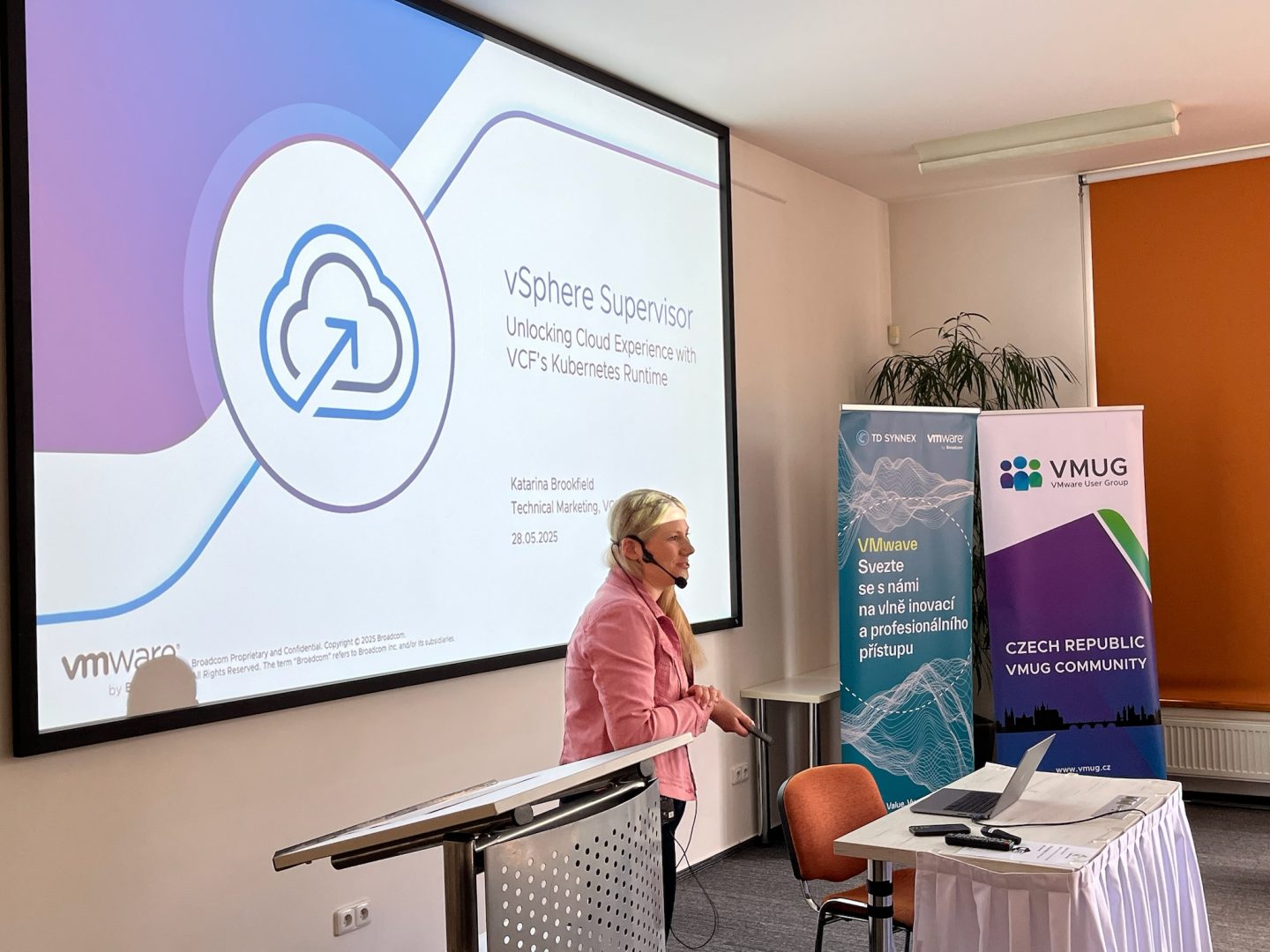
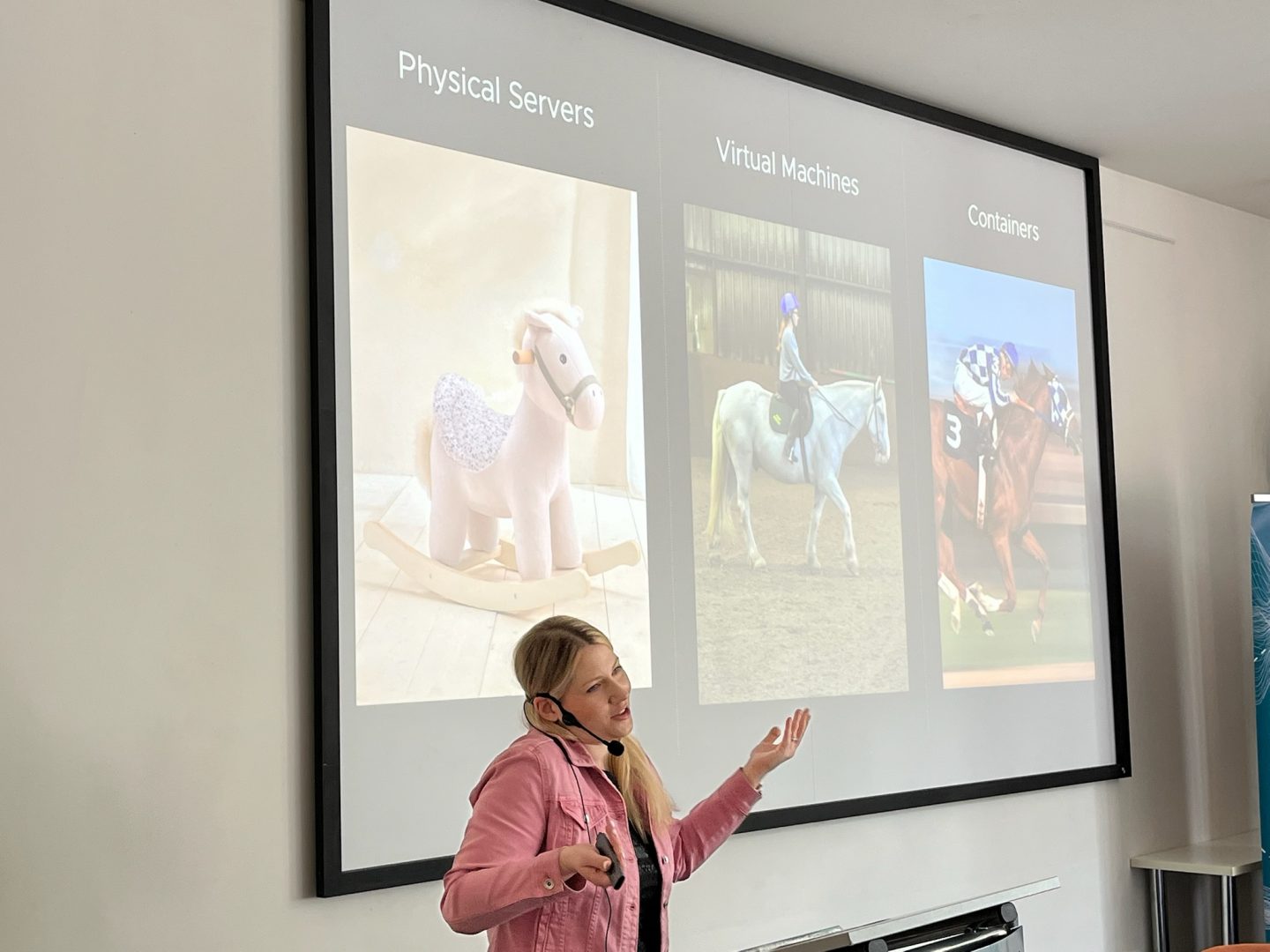
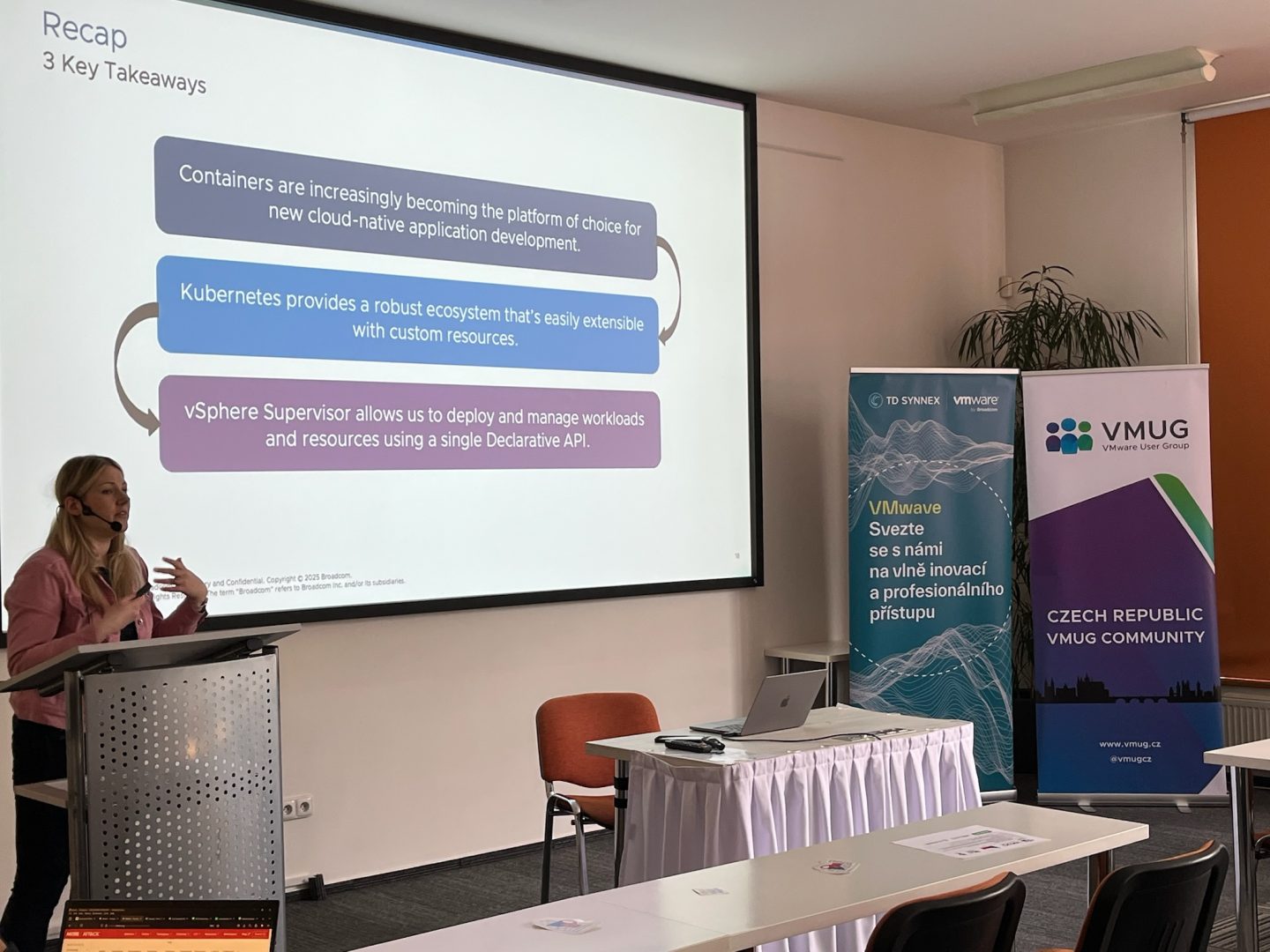
Next up, Katarina Brookfield delivered an excellent presentation, “vSphere Supervisor – Unlocking Cloud Experience with Kubernetes.” She skillfully showed how vSphere bridges the gap between traditional IT and modern cloud-native applications, leaving us with plenty to think about in terms of operational agility and Kubernetes integration.
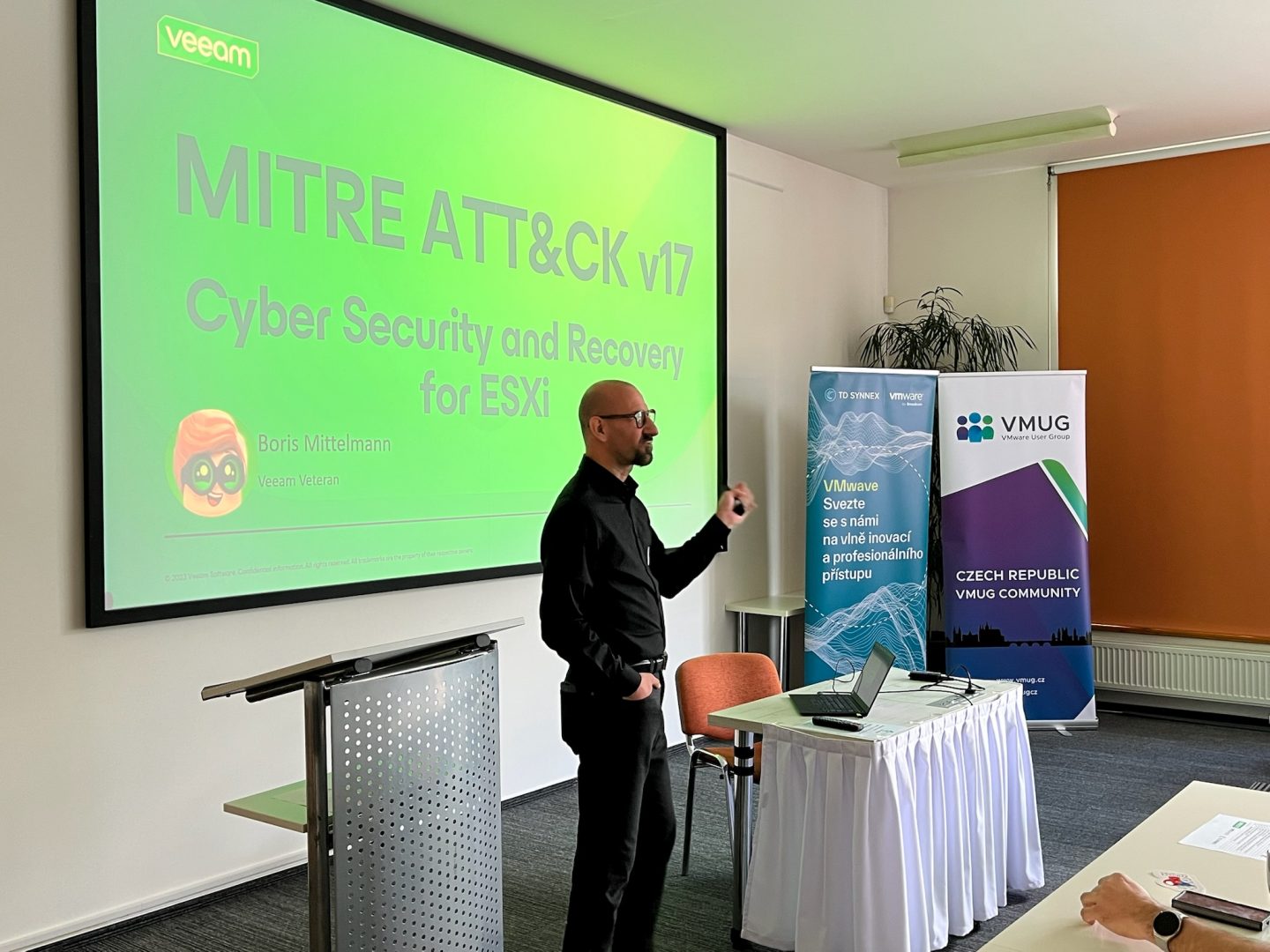
Boris Mittelmann then brought cybersecurity front and center with his essential session, “Veeam on MITRE ATT&CK v17 – Cyber Security and Recovery for ESXi.” Boris offered actionable tips and real-world insights on securing virtual environments, highlighting the importance of cyber resilience and preparedness.
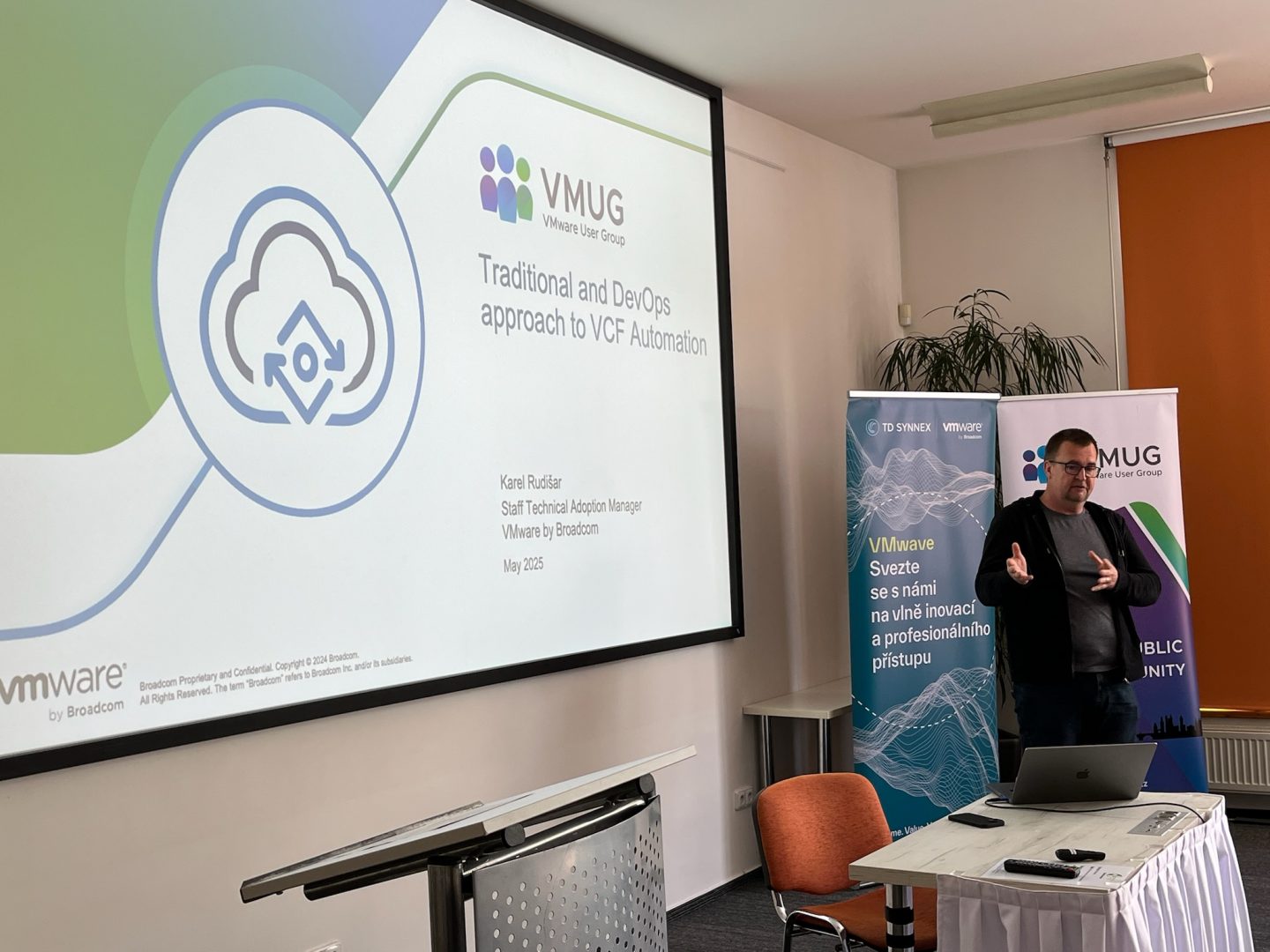
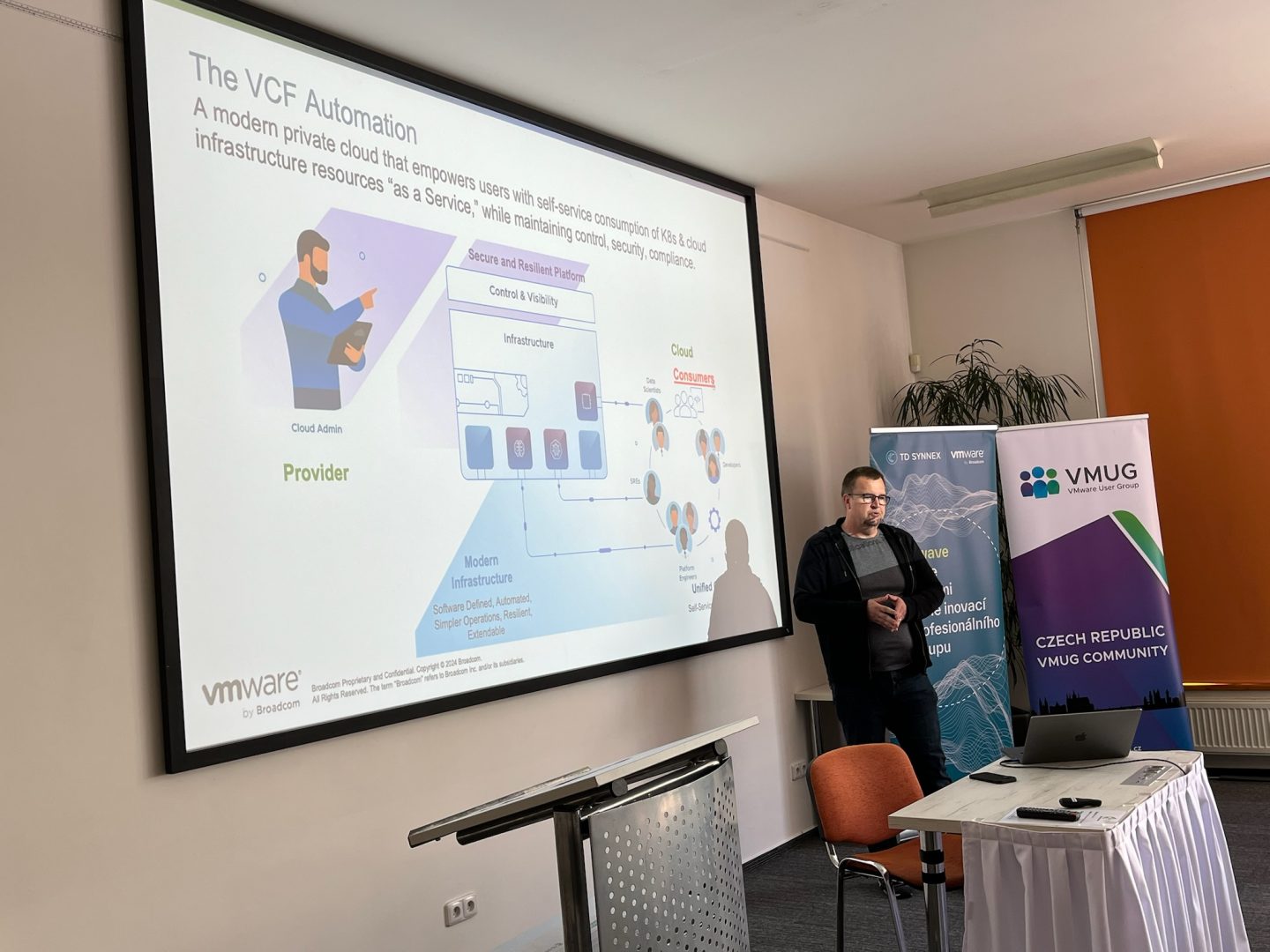
In the afternoon, Karel Rudišar provided valuable perspectives in his talk, “Traditional and DevOps Approach and Automation in VCF.” He effectively illustrated the advantages of combining traditional IT practices with DevOps methodologies to streamline automation within VMware Cloud Foundation.
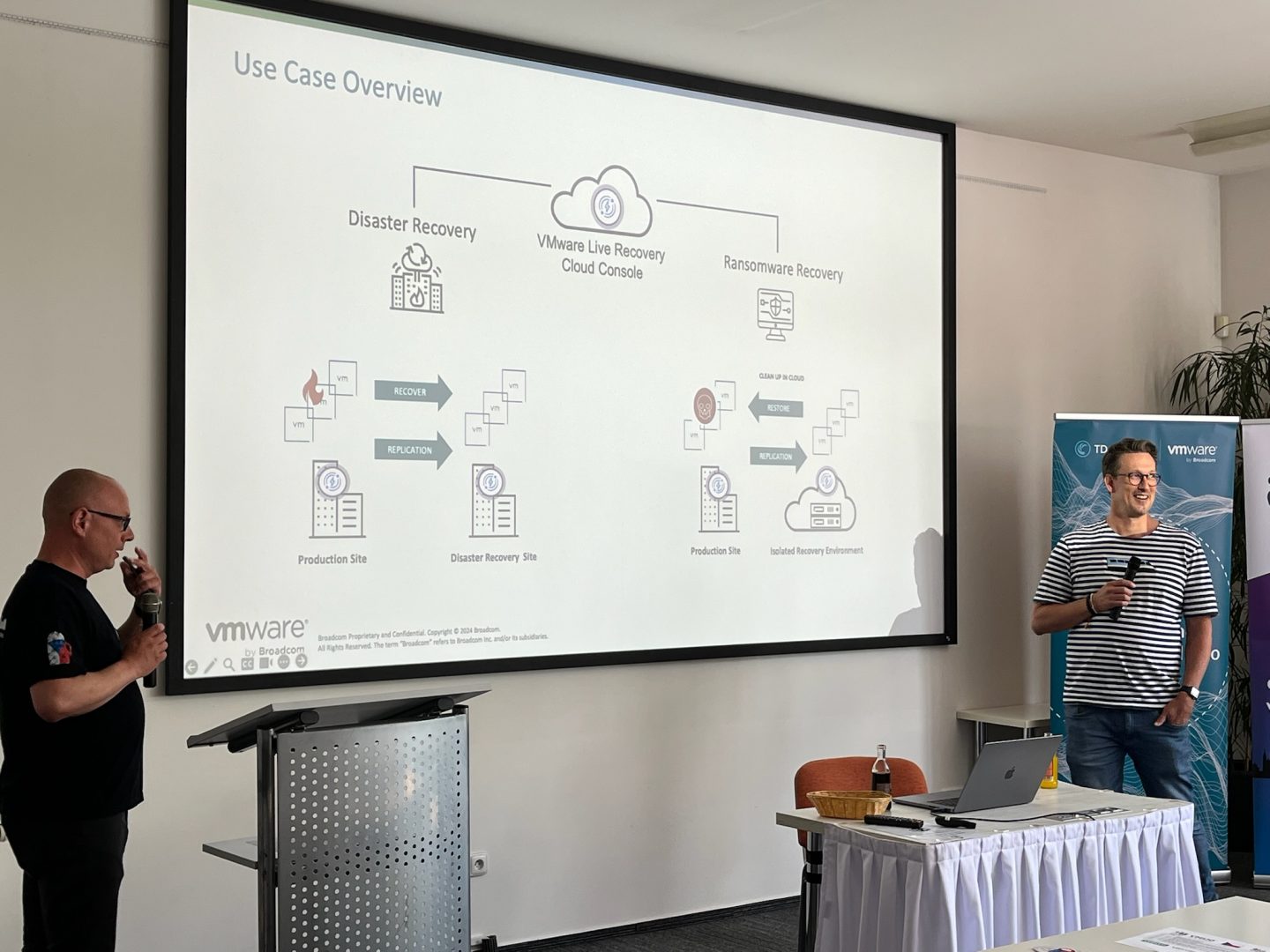
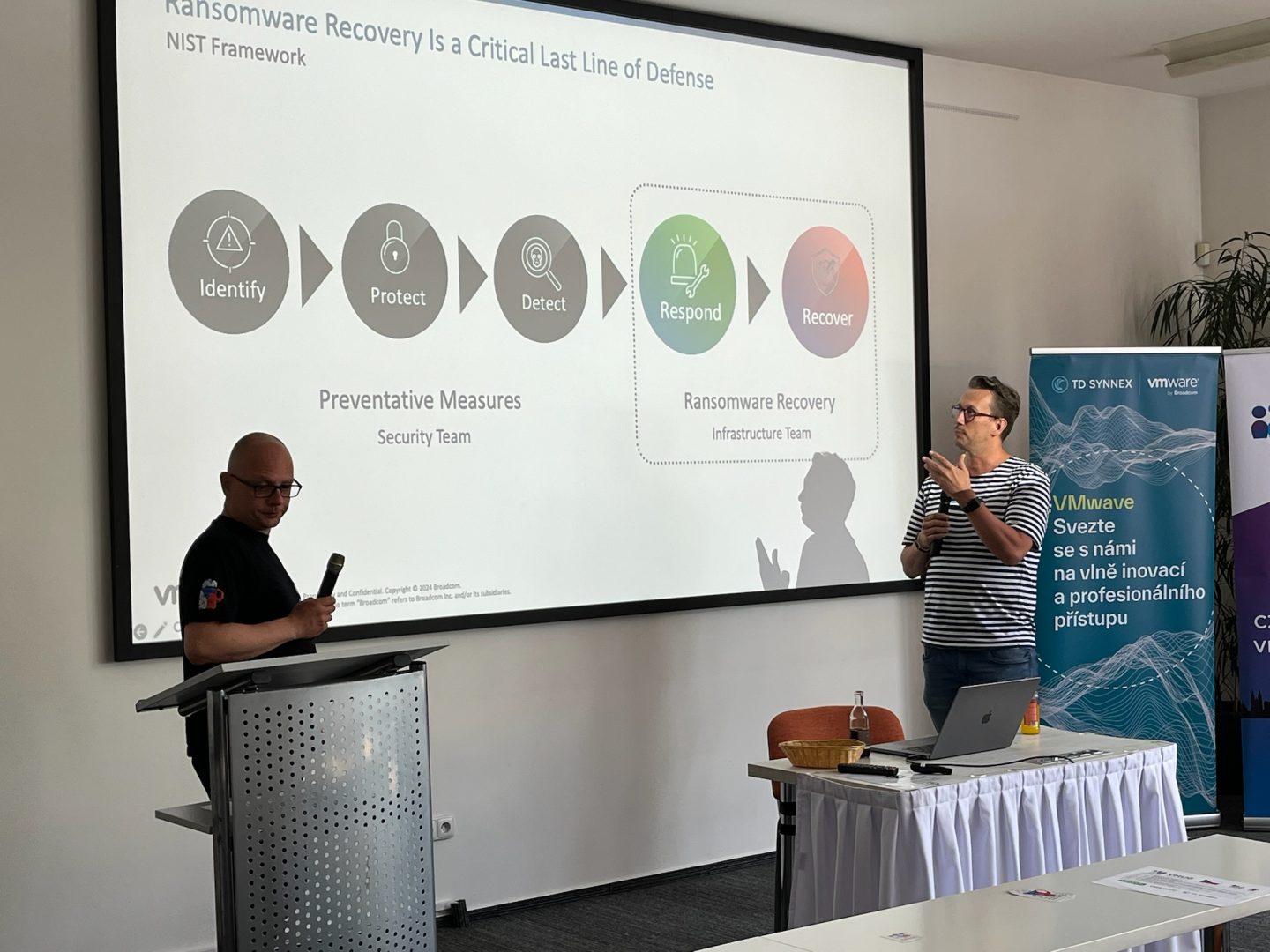
The critical topic of ransomware was expertly covered by František Ferenčík and Marek Ištok, whose session, “Ransomware Recovery for VCF,” offered practical strategies to mitigate ransomware threats and ensure robust recovery methods, essential for maintaining a secure VMware Cloud Foundation environment.
Petr Rada contributed further with insights into VMware Cloud Foundation, helping to deepen our collective understanding of key operational practices.
We wrapped up the informative sessions with an engaging roundtable discussion featuring VMUG Leaders and all session speakers. This interactive segment allowed us to share experiences and exchange valuable ideas.
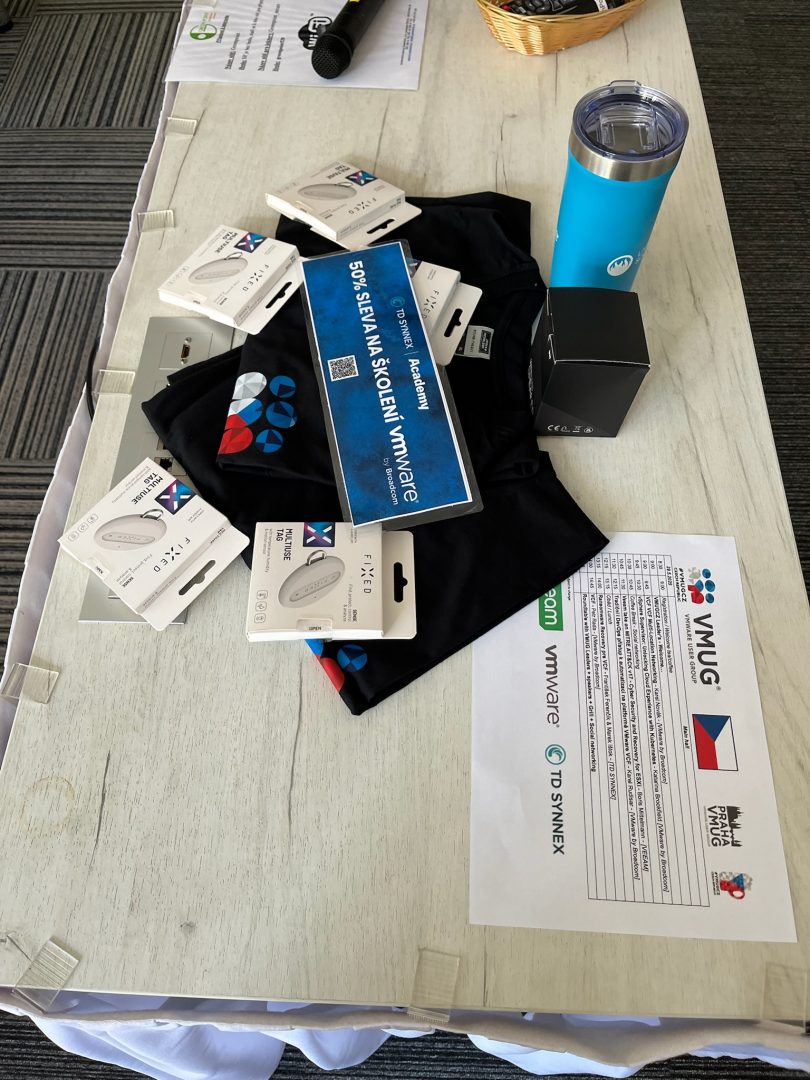
Adding excitement to the event was our raffle, where lucky attendees won two exclusive VMUGCZ t-shirts, five handy multi-use tags, a Bluetooth speaker, a LiveFire water bottle, and a special 50% discount voucher for VMware training.
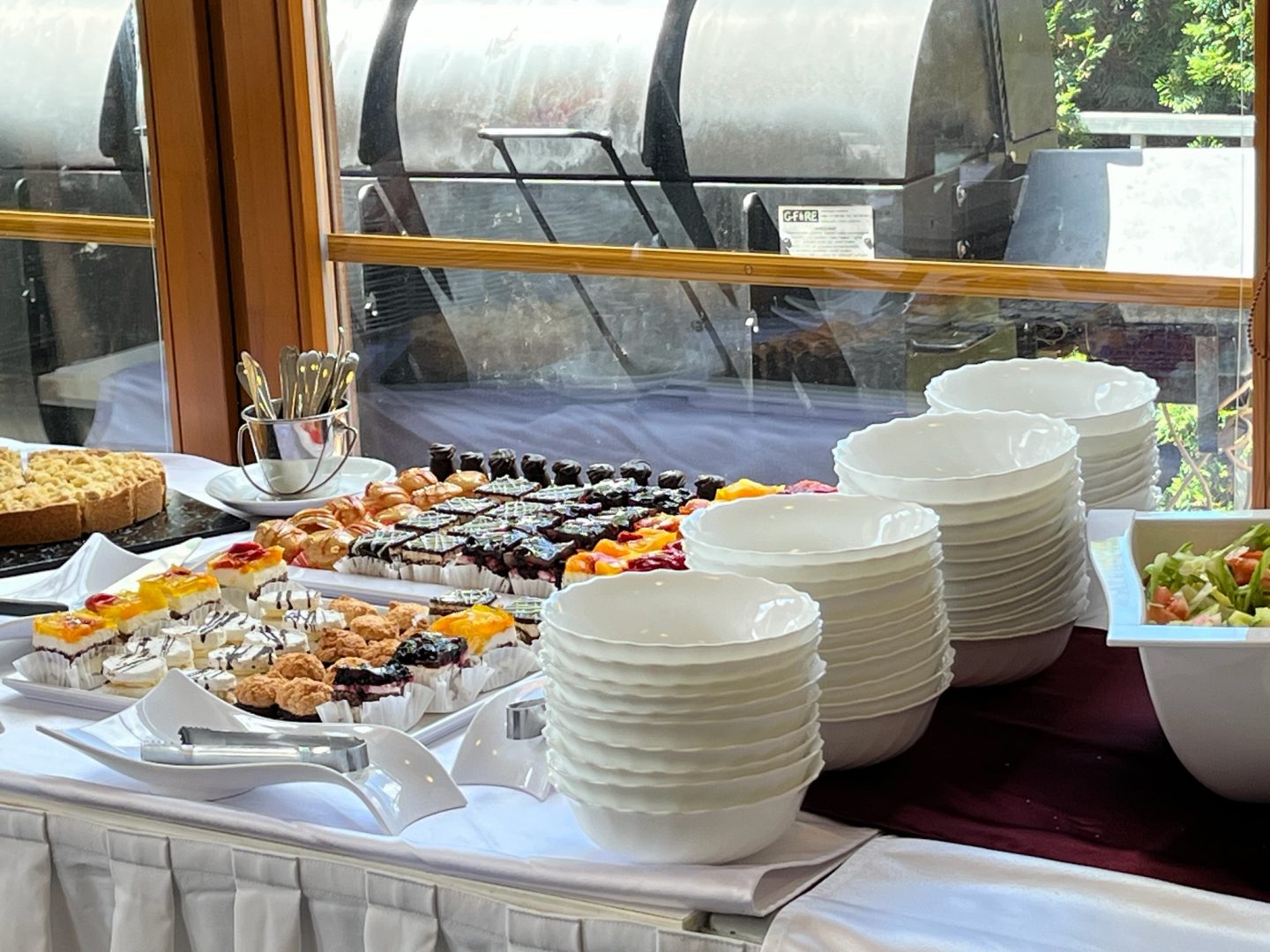
The day concluded on a high note with a fantastic grill featuring delicious meats, vegetables, sausages, complemented by refreshing beer and great company during our social networking session. It was the perfect end to a rewarding day of learning and community building.
A heartfelt thanks to our sponsors VEEAM, TD SYNNEX , Broadcom and all speakers, attendees, and my co-organizer Josef Zach for making the VMUG Czech Republic event such a memorable success. I’m already looking forward to our next meetup!
It’s been a while since I freshly deployed Aria Operations, so let’s see what it looks like with Operations 8.18.3. For the record, I downloaded it here.Once downloaded, I deployed directly from vCenter, powered on the VM and here we go. Click NEW INSTALLATION. Set the admin password. Use the […]
Each year I look forward to the VMware by Broadcom conference VMware Explore. I attended my first one back in 2017, when it was VMworld. That year it was held in Mandalay Bay in Las Vegas. I was amazed at all of the great content from the sessions. Not only from a VMware perspective, […]
Automate your infrastructure, improve efficiency, and enable agility. See how VMware Cloud Foundation lowers your total cost of ownership—so your teams can focus on innovation, not infrastructure.
As artificial intelligence reshapes industries, enterprise IT leaders face a tough balancing act: deliver cutting-edge AI capabilities without compromising data privacy, governance, or cost-efficiency. Enter VMware Private AI Foundation with NVIDIA […]
In today’s fast-paced technological landscape, automation is crucial for achieving efficiency and scalability. To stay ahead of the curve, it’s essential to leverage tools like Data Services Manager (DSM) and Terraform, a popular infrastructure-as-code (IaC) tool. By integrating DSM with […]