
Introducing sso-users – A Fast Go CLI for vCenter SSO User Auditing

I built sso-users—a lightweight Go application that connects directly to the VMware Directory Service (vmdir) over LDAPS and reports local SSO users together with their password expiration status.

The project was originally created for VMware Cloud Foundation (VCF) 9 environments, but it should works anywhere the vCenter SSO directory is available over LDAP.

Where to find it -> here in repository musil/vSphere_scripts on GitHub.

Why I Built It

When performing security reviews or compliance audits, one of the recurring questions is:

  • Which local SSO accounts exist?
  • Are any passwords already expired?
  • Which accounts never expire?
  • Are any accounts disabled or locked?

Some of the questions can be answered by PowerCLI and the VMware.vSphere.SsoAdmin module. But not all. I wanted something that:

  • runs anywhere
  • has zero PowerShell dependencies
  • is easy to automate
  • can be integrated into monitoring systems
  • exposes the data over a simple REST API

So I wrote sso-users in Go.

What It Does

The application connects securely to vmdir using LDAPS and retrieves local SSO accounts.

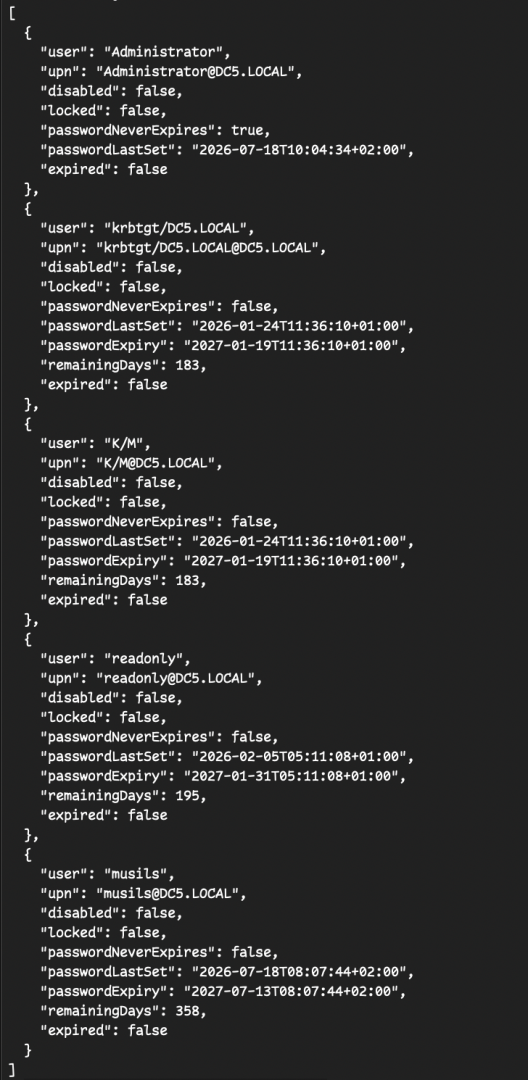
For every user it calculates password expiration based on the directory attributes and displays information including:

  • Username
  • User Principal Name (UPN)
  • Disabled state
  • Locked state
  • Password never expires
  • Password last changed
  • Password expiration date (if is not set to password never expire)
  • Days remaining until expiration (if is not set to password never expire)

Instead of relying on the vSphere UI, the tool reads the information directly from LDAP, making it fast and script-friendly. (GitHub)

Flexible Output

The CLI supports multiple output formats depending on your workflow.

For administrators:

  • Human-readable table output

For automation:

  • JSON output

This makes it easy to integrate with:

  • monitoring systems
  • scheduled compliance reports
  • inventory scripts
  • CI/CD pipelines

Built-in REST API

Besides the CLI, sso-users can also run as a small HTTP service.

The API is protected with a bearer token and exposes:

  • /health
  • /api/v1/users

This makes it straightforward to integrate with dashboards, Grafana, custom portals, or other internal tooling without repeatedly invoking the CLI. (GitHub)

Security First

Security was one of the design goals.

The application:

  • supports interactive password prompts
  • can read credentials from environment variables
  • avoids logging passwords or API keys
  • supports trusted TLS certificates
  • allows -insecure only for internal or lab environments with self-signed certificates

It also avoids placing passwords in shell history whenever possible. (GitHub)

Why Go?

Go is a great fit for infrastructure tools.

The resulting binary is:

  • cross-platform
  • fast
  • easy to distribute
  • dependency-free

Release builds are available for:

  • Linux (amd64)
  • Windows (amd64)
  • macOS (Apple Silicon)

Open Source

The project is completely open source, and I hope it becomes useful for VMware administrators, consultants, and anyone responsible for auditing vCenter environments.

Feedback, bug reports, feature requests, and pull requests are always welcome.

Happy automating!
Step by Step vCenter Server 9.0 Installation with Screenshots

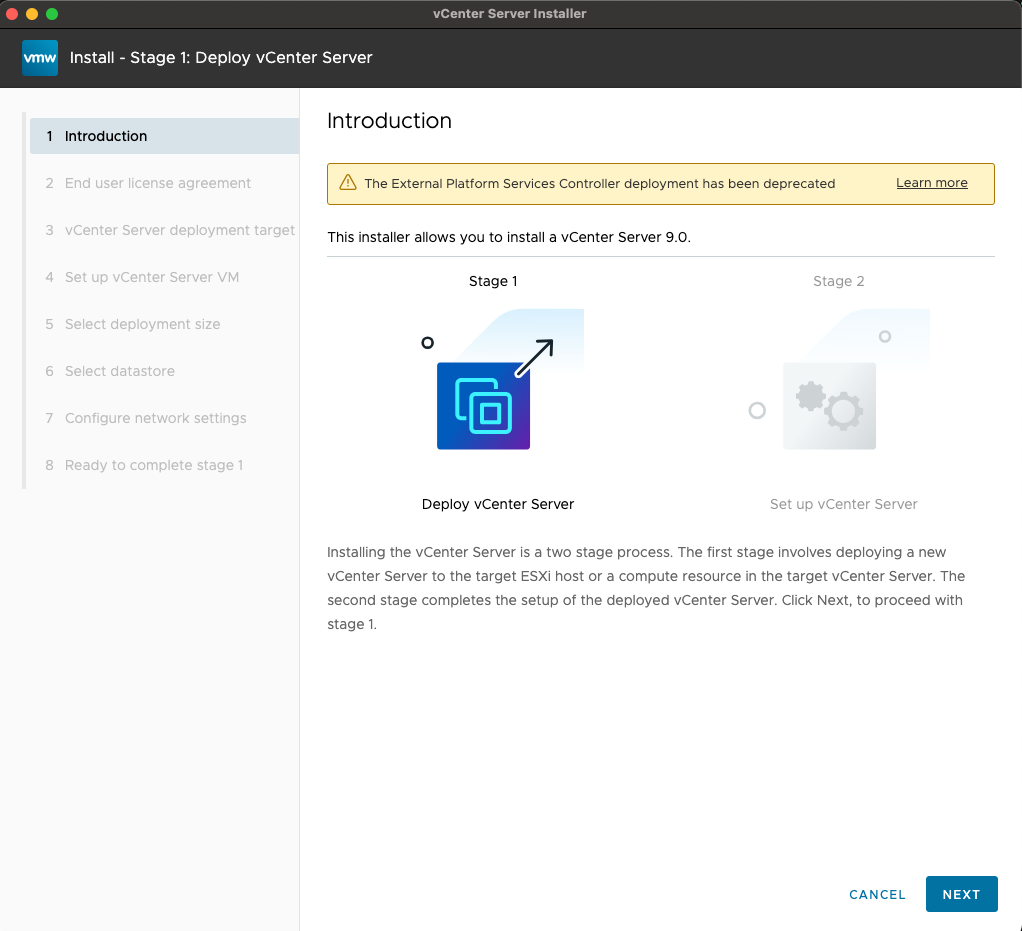
In this post, I’ll walk you through the installation step by step, with screenshots for every important click along the way. Whether you’re setting up a lab or preparing for production, these pictures will make sure you don’t miss a thing. Let’s dive in!

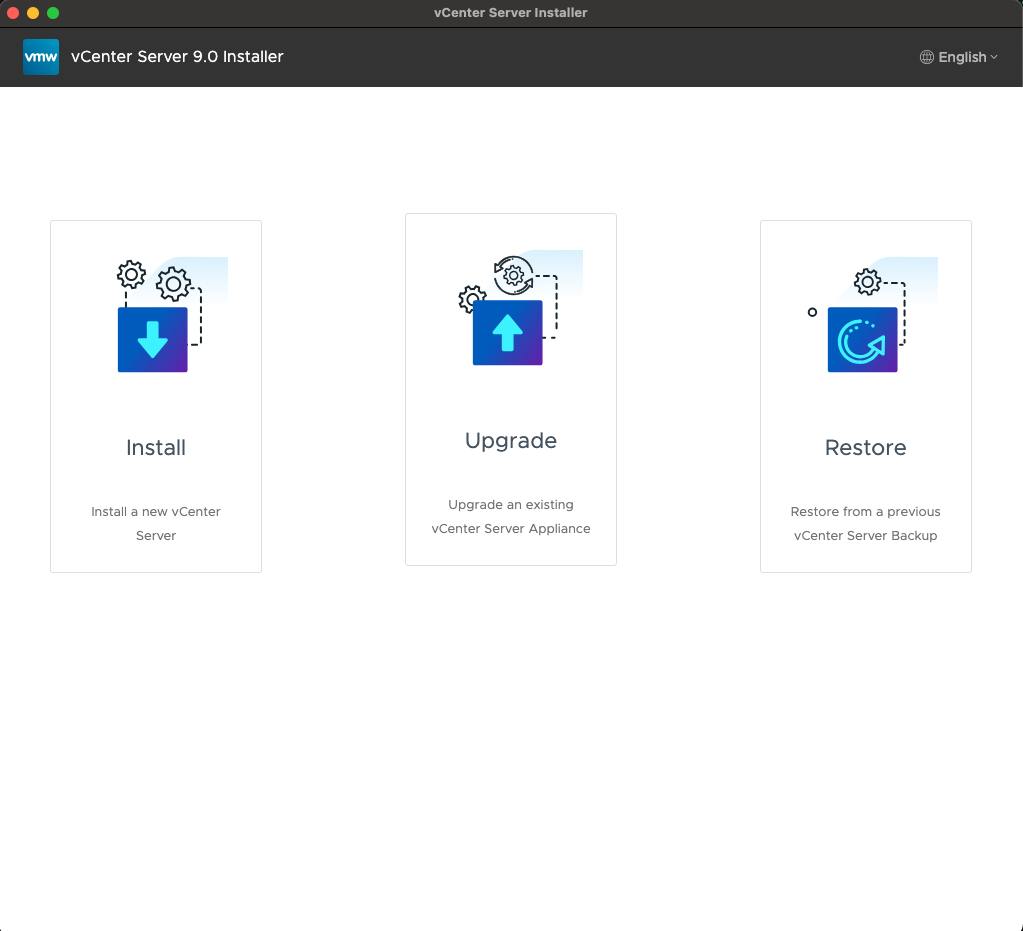
Mount ISO image and run installer

Deploy new vCenter Server

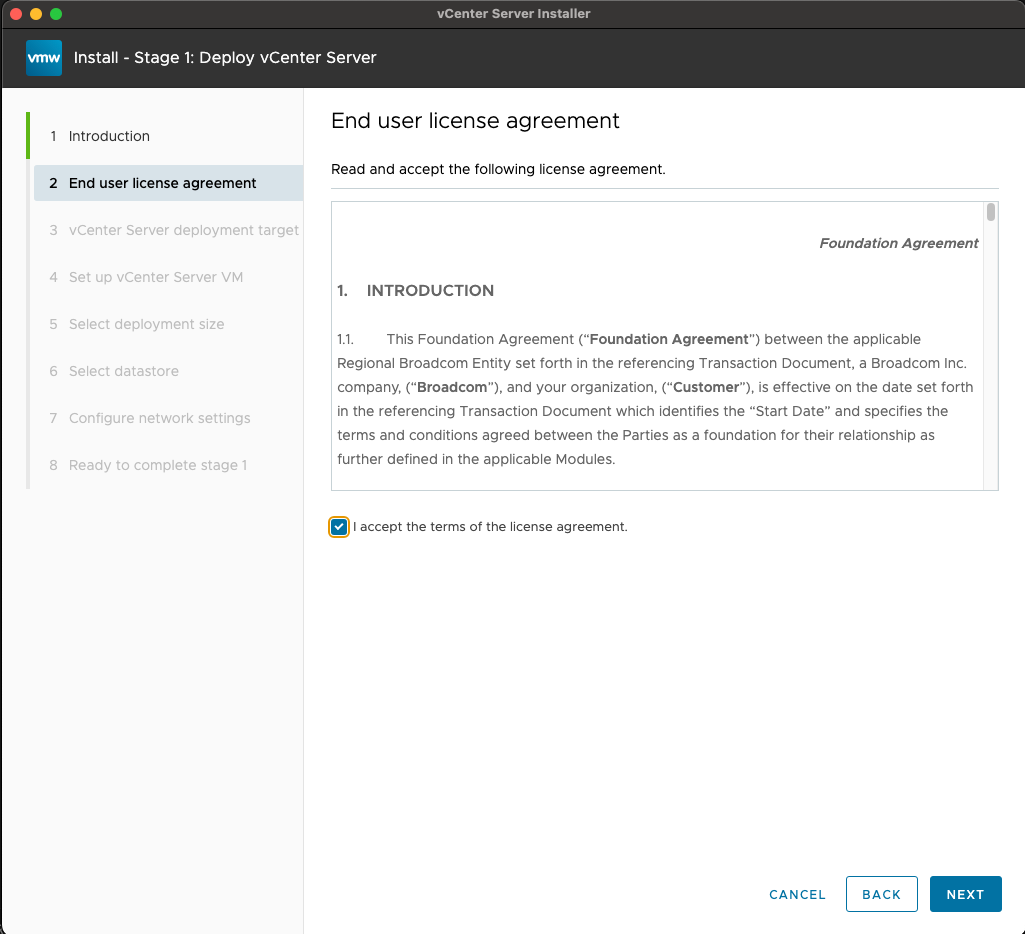
Check “I accept the terms of the license agreement.”

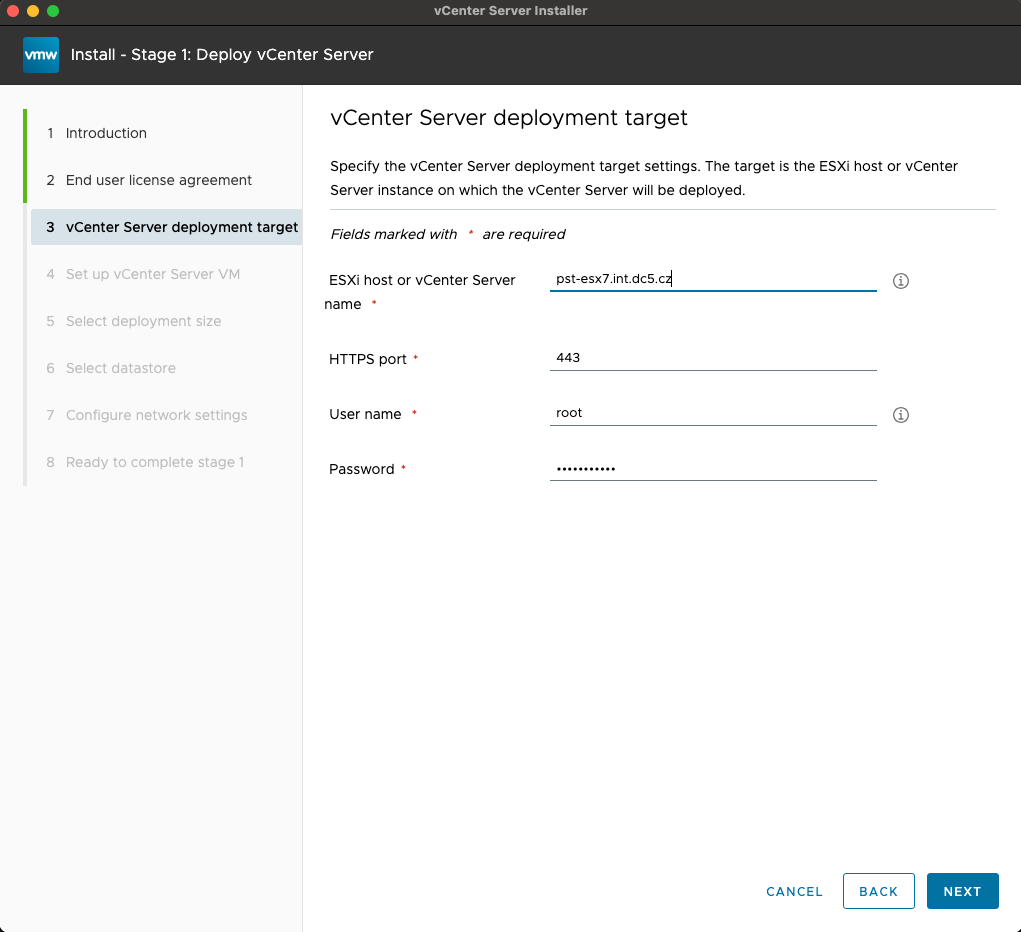
Fill the ESXi host DNS name/IP or vCenter DNS/IP + credentials.

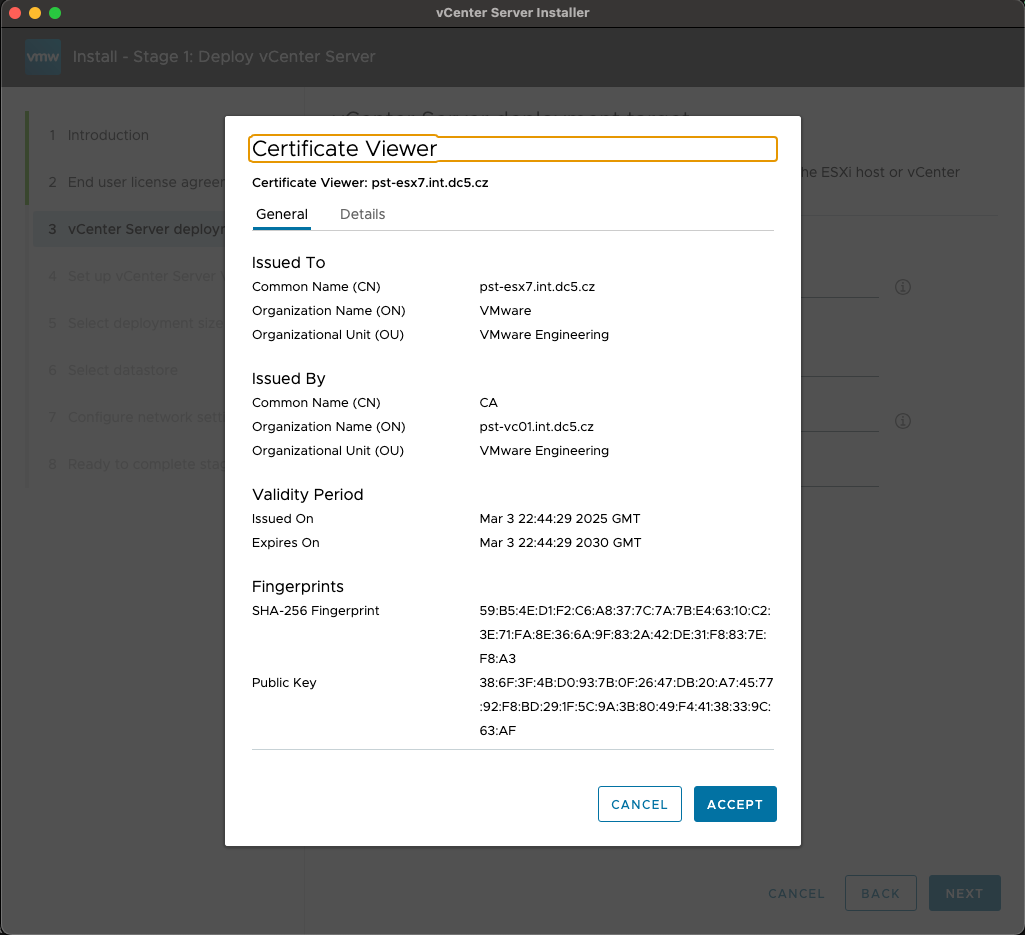
Accept the certificate

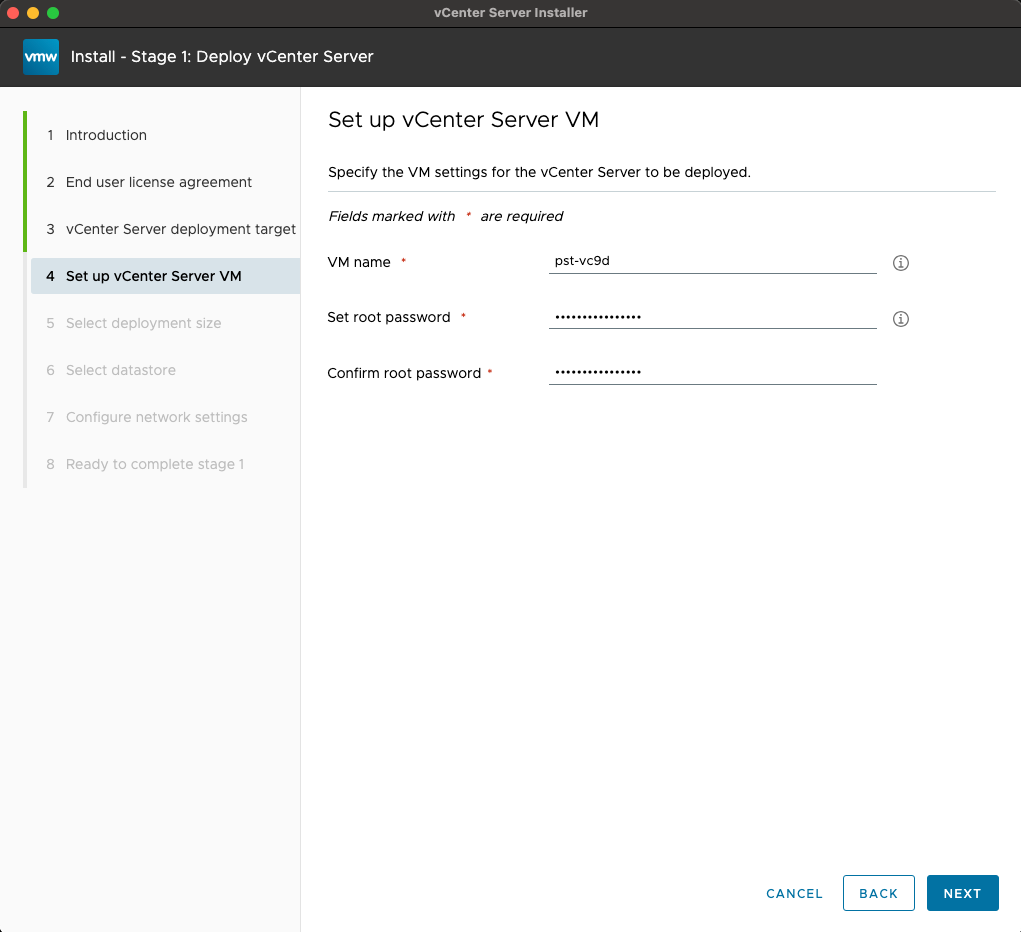
Provide a new vCenter VM Name and root password.

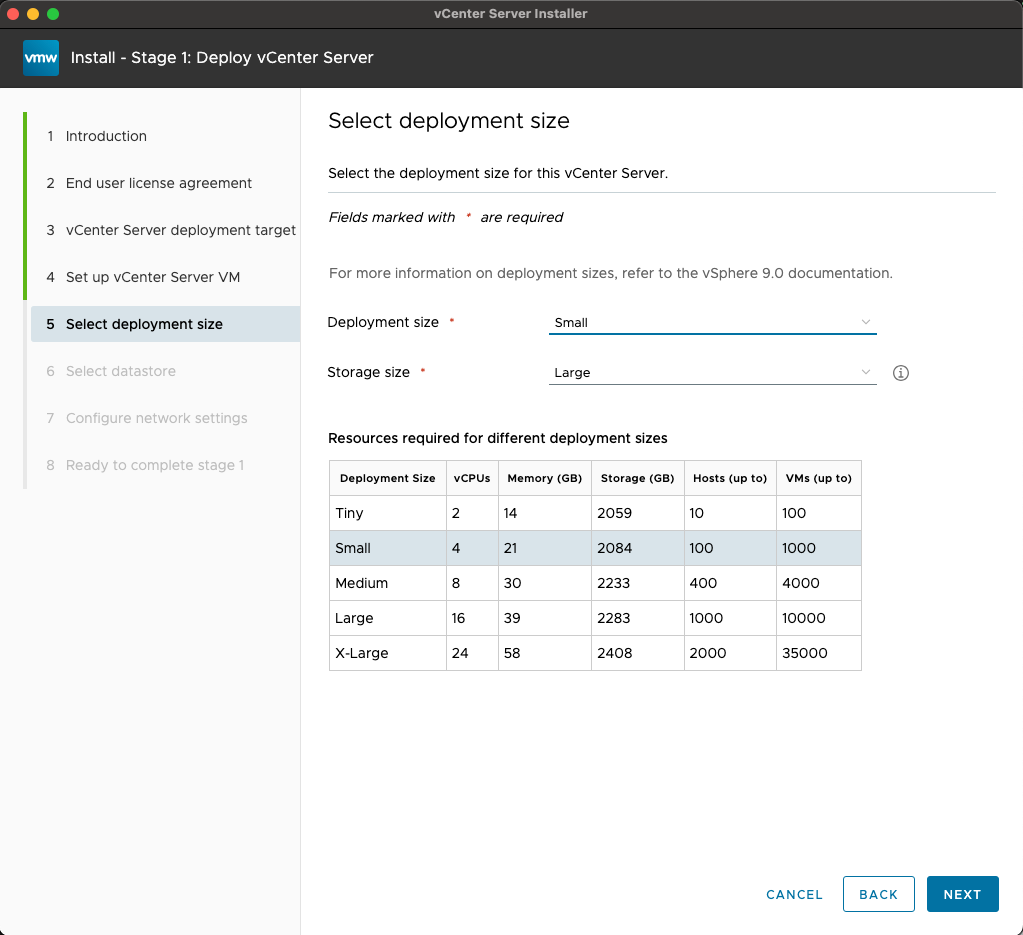
Choose deployment size based on your environment.

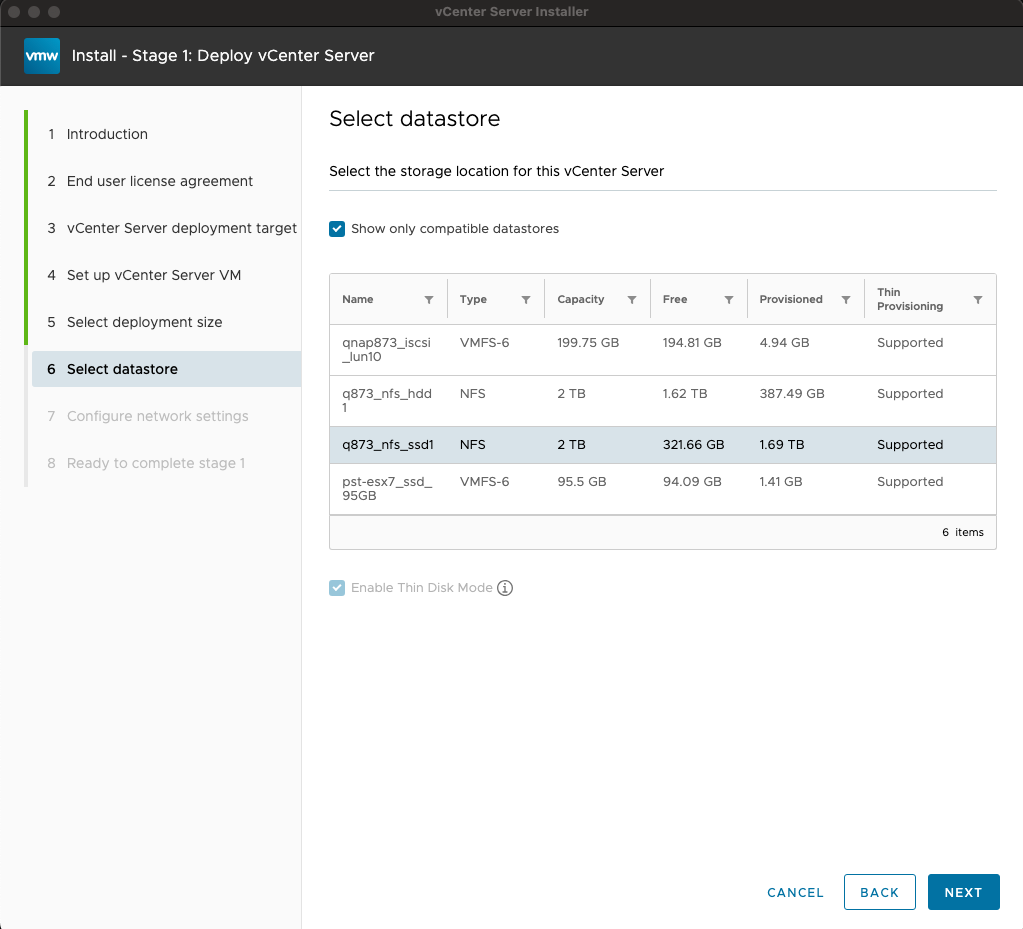
Pick datastore where the new vCenter will be deployed.

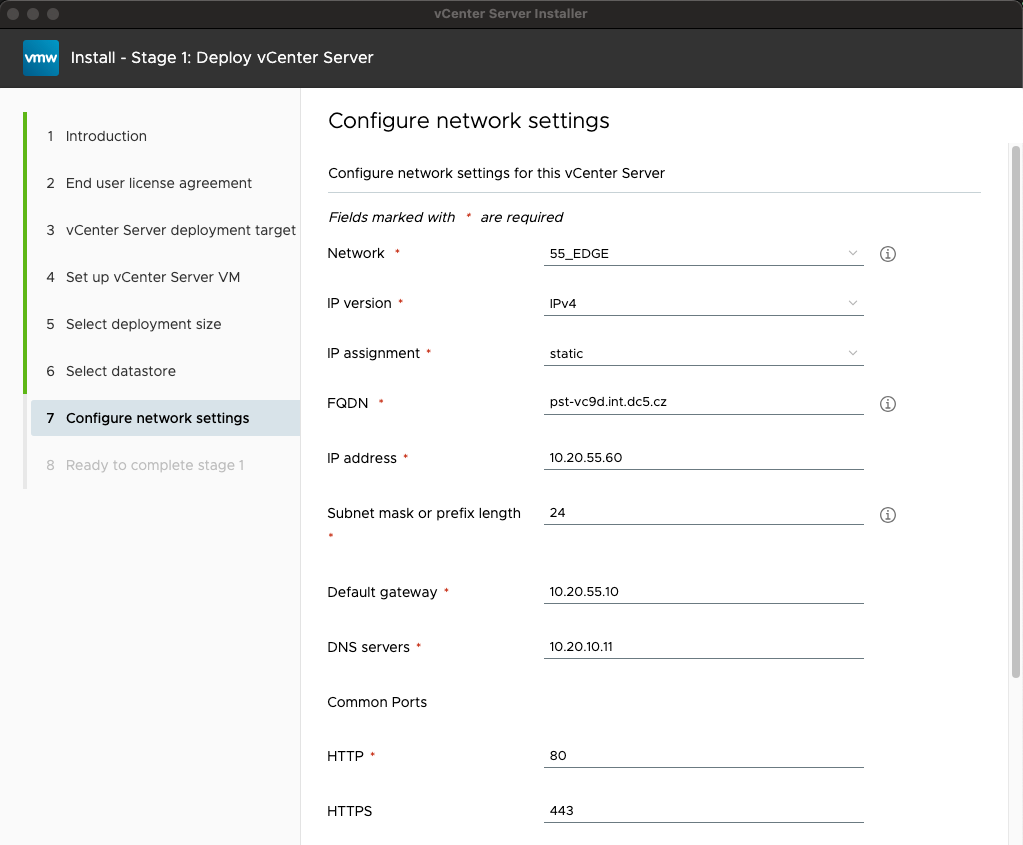
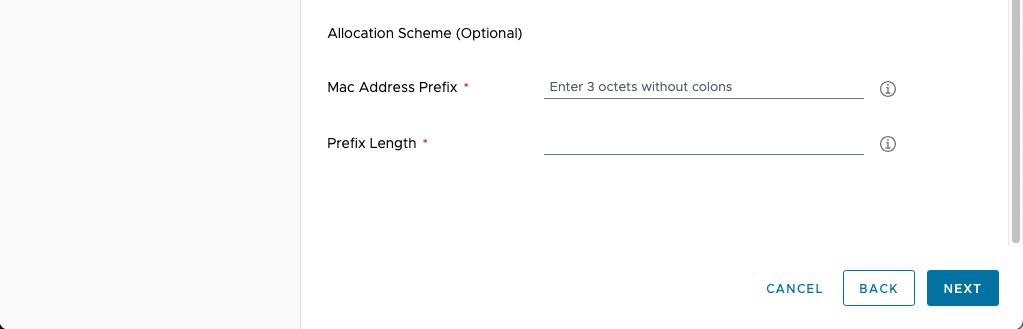
Fill all the netwok details.

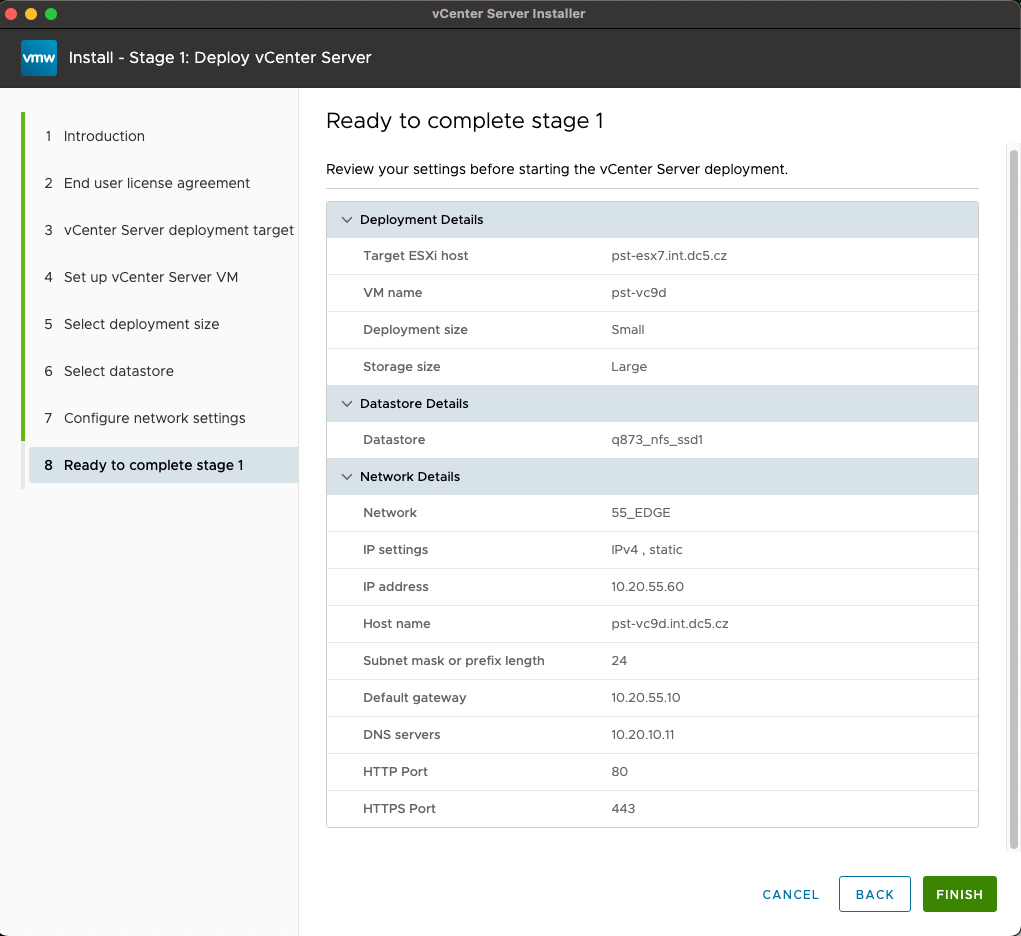
Final review before deployment.

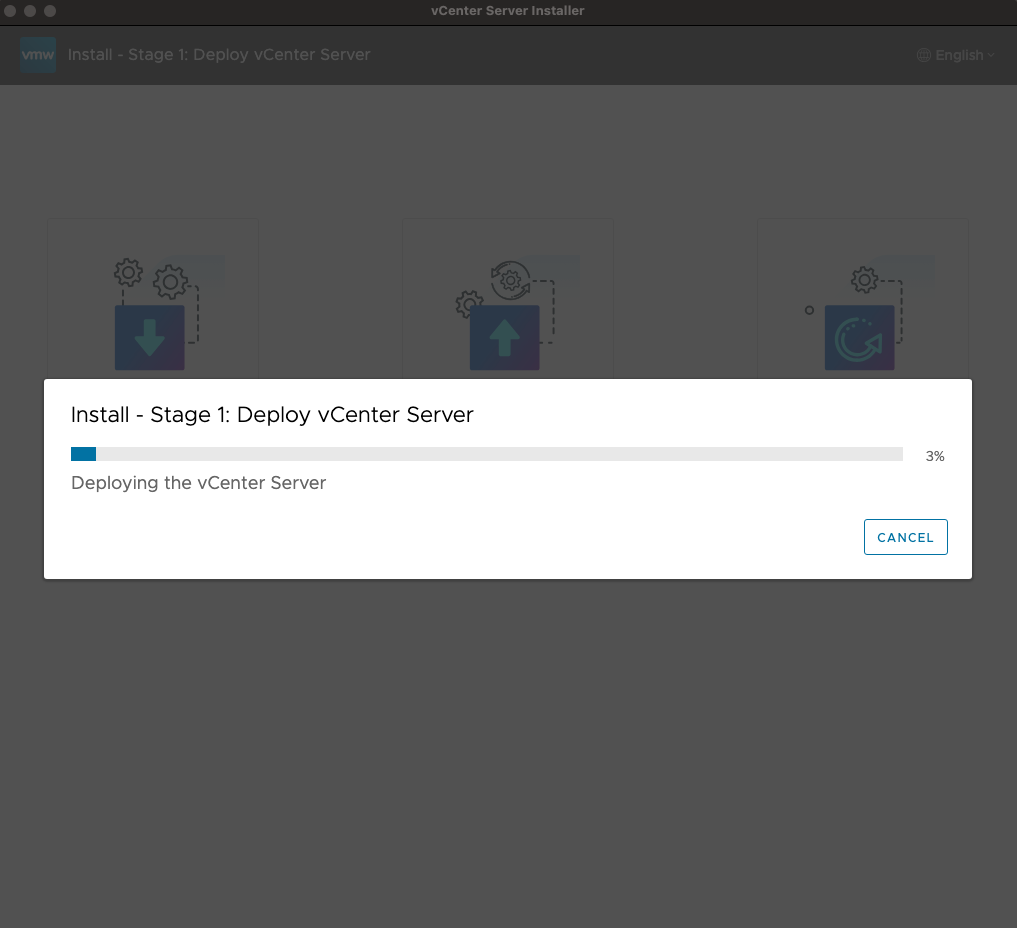
Deployment in progress

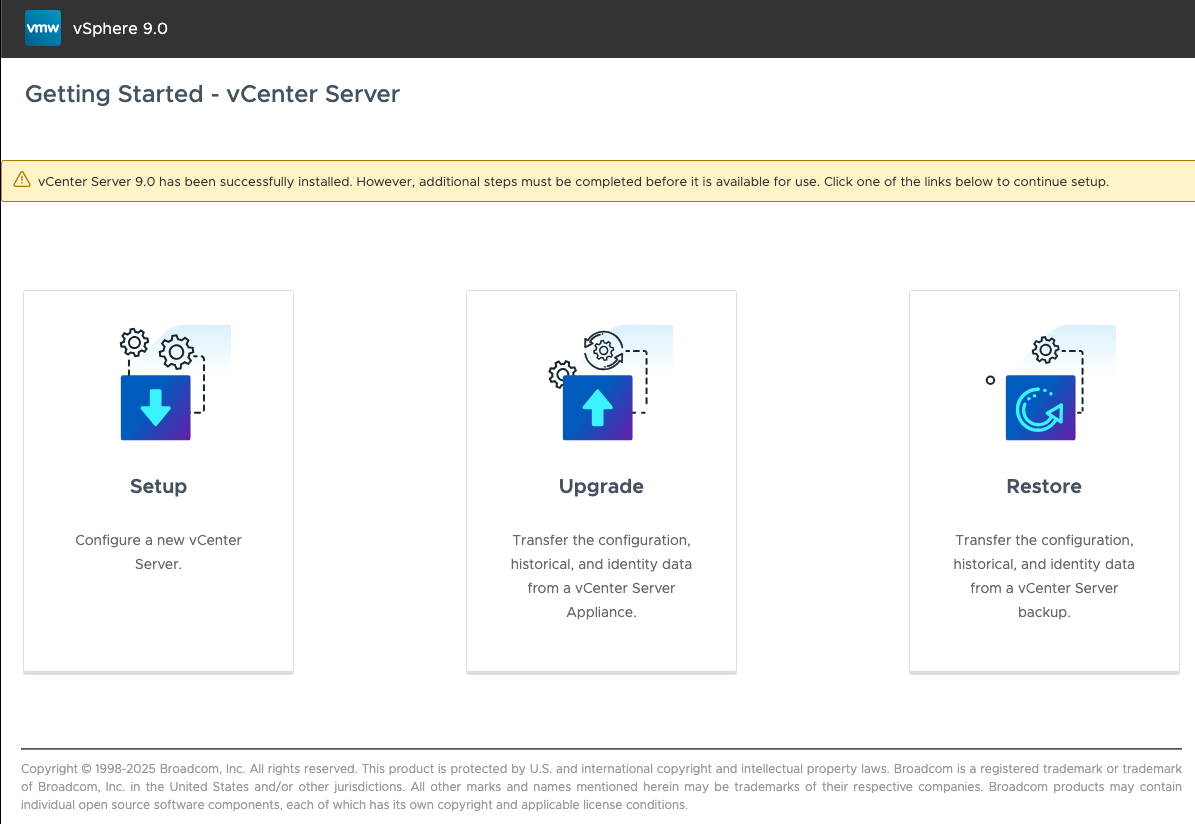
Stage 2

choose “Setup”

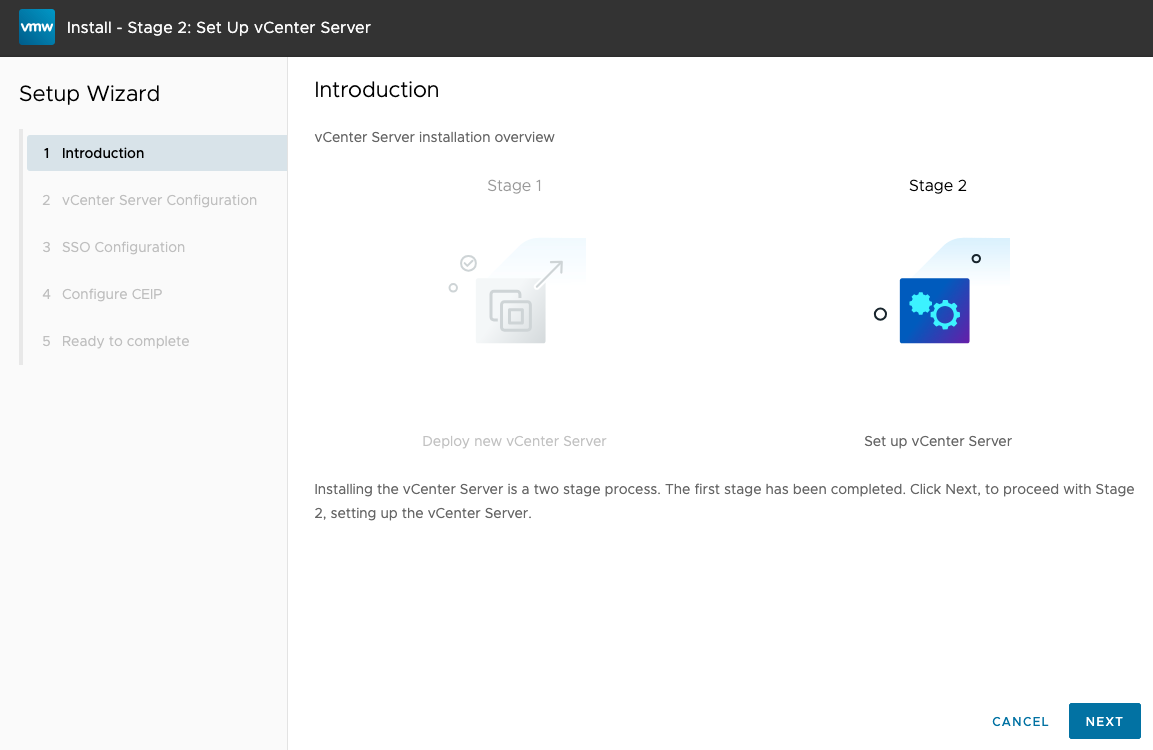
Continue with Stage 2

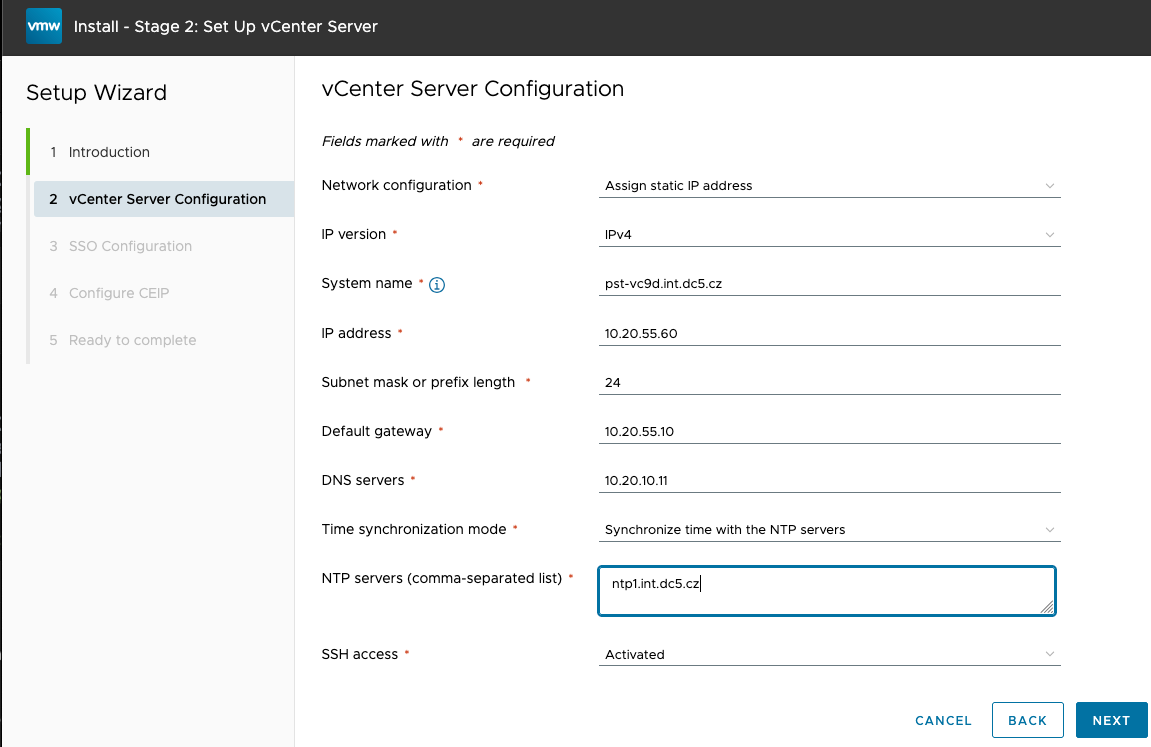
Fill vCenter configuration, DNS servers, NTP’s, Allow/disallow SSH access.

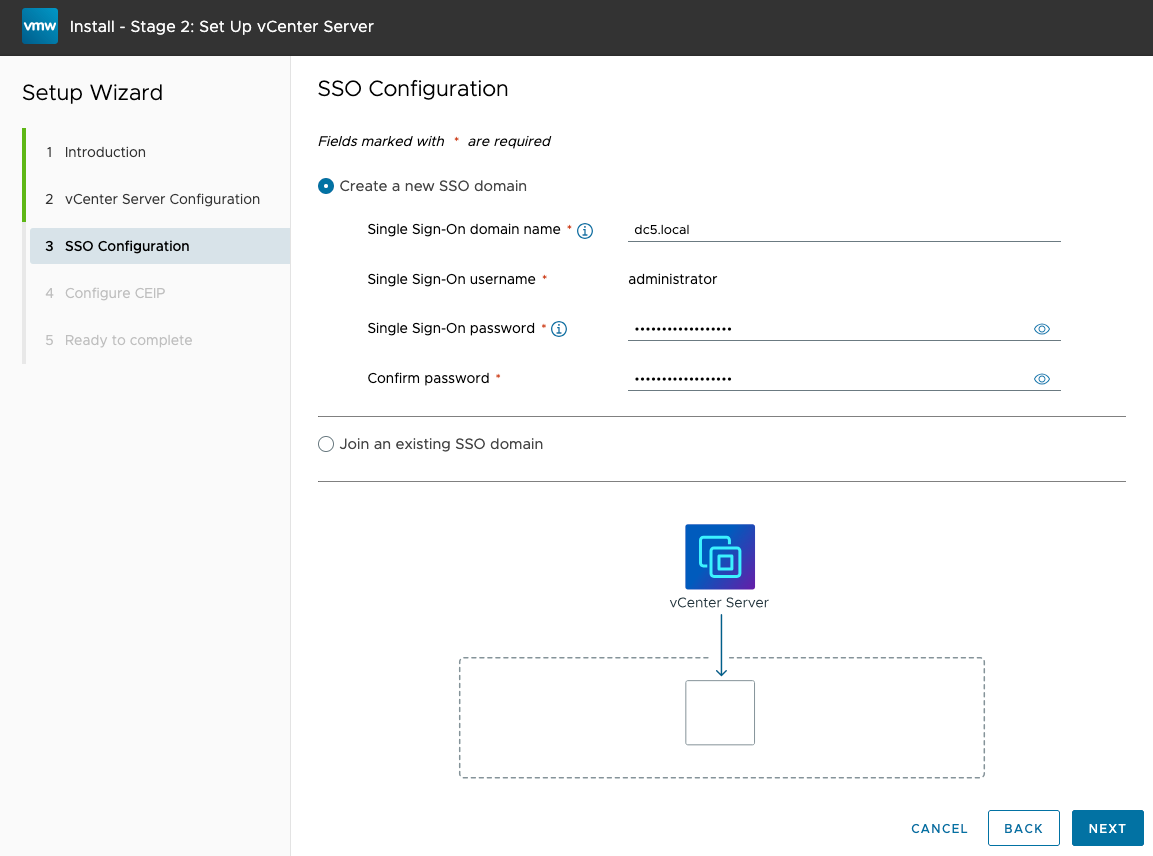
Create new or join existing SSO domain.

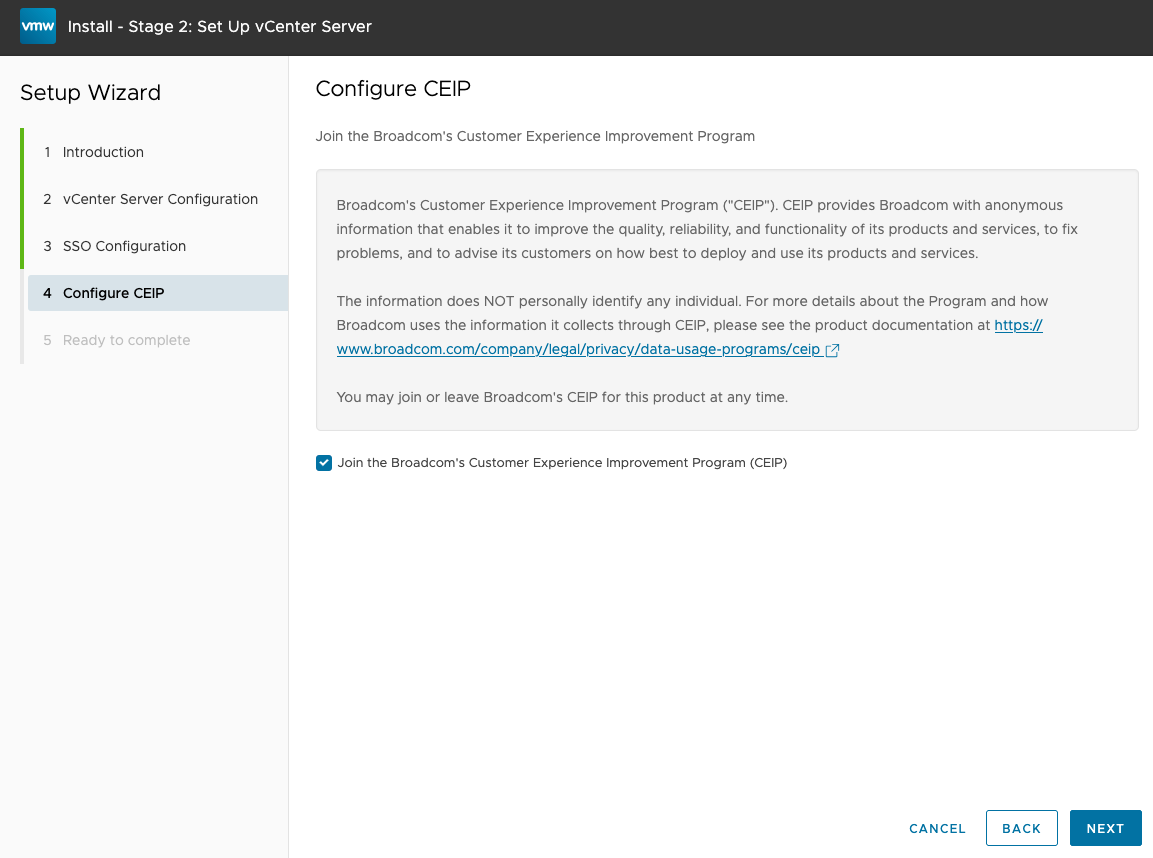
Configure CEIP

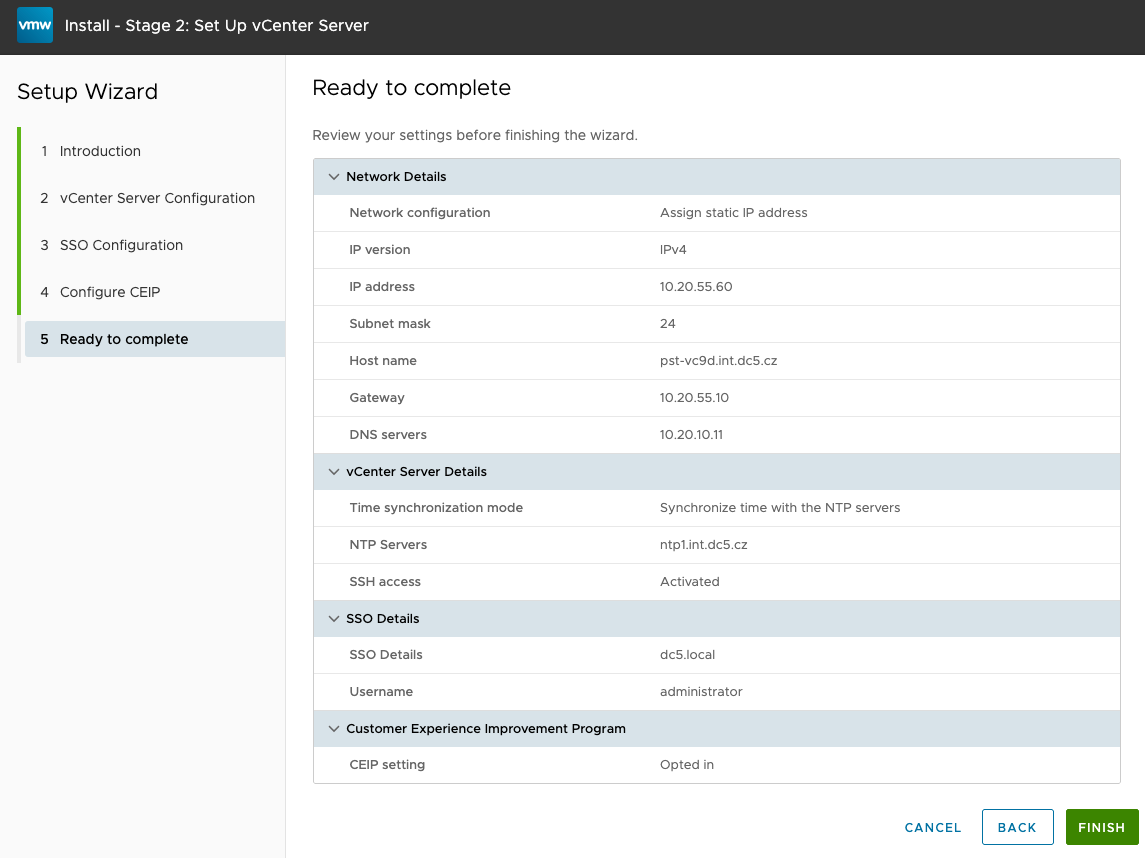
Review

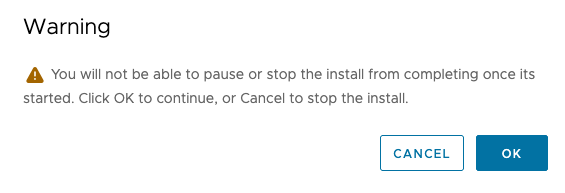
Warning as after this point there is no way back.

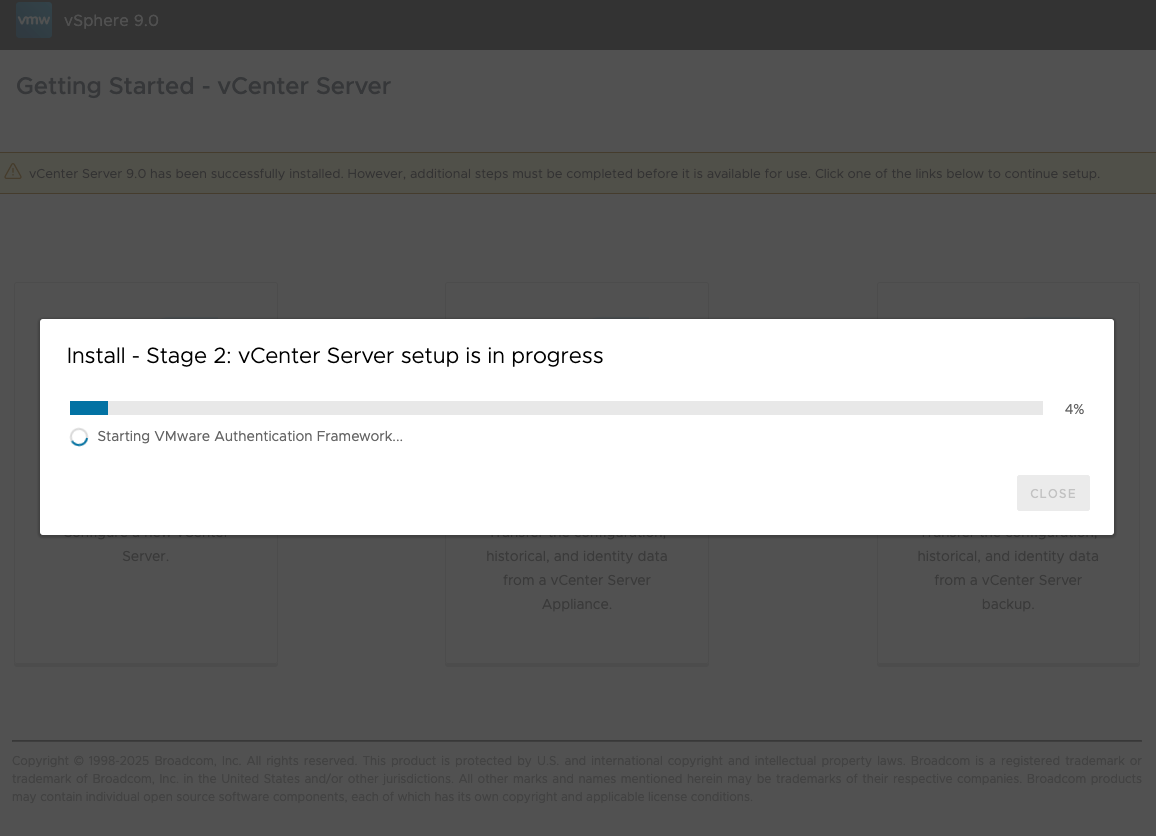
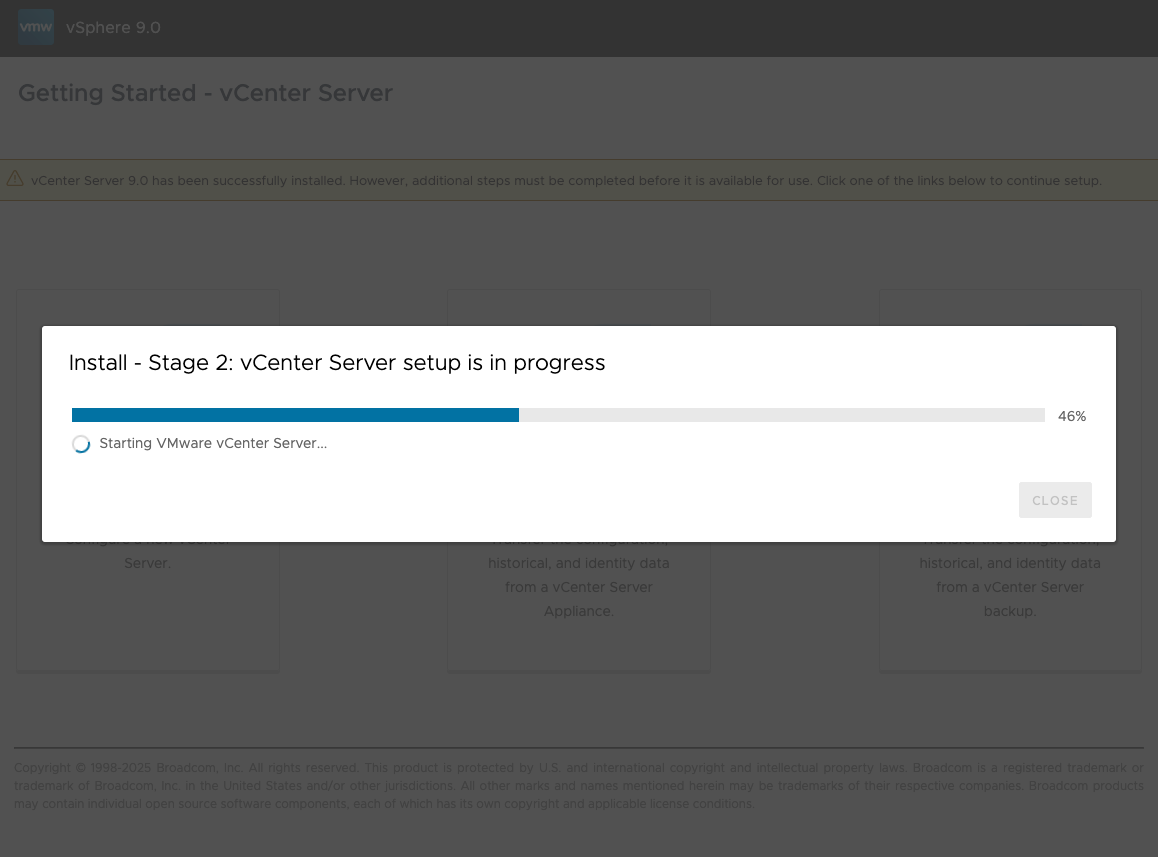
Stage 2 deployment and configuration

Stage 2 progress

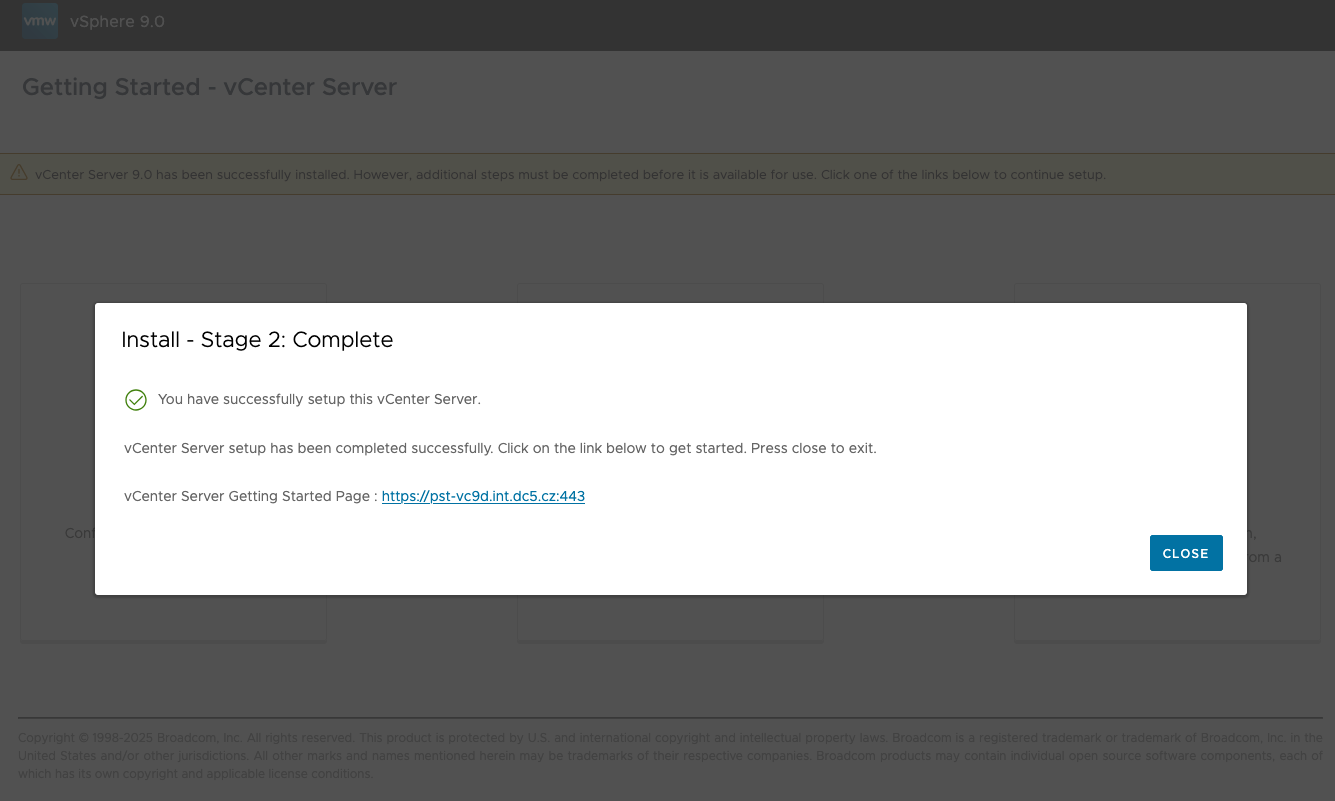
Stage 2 completed. Click on the link…

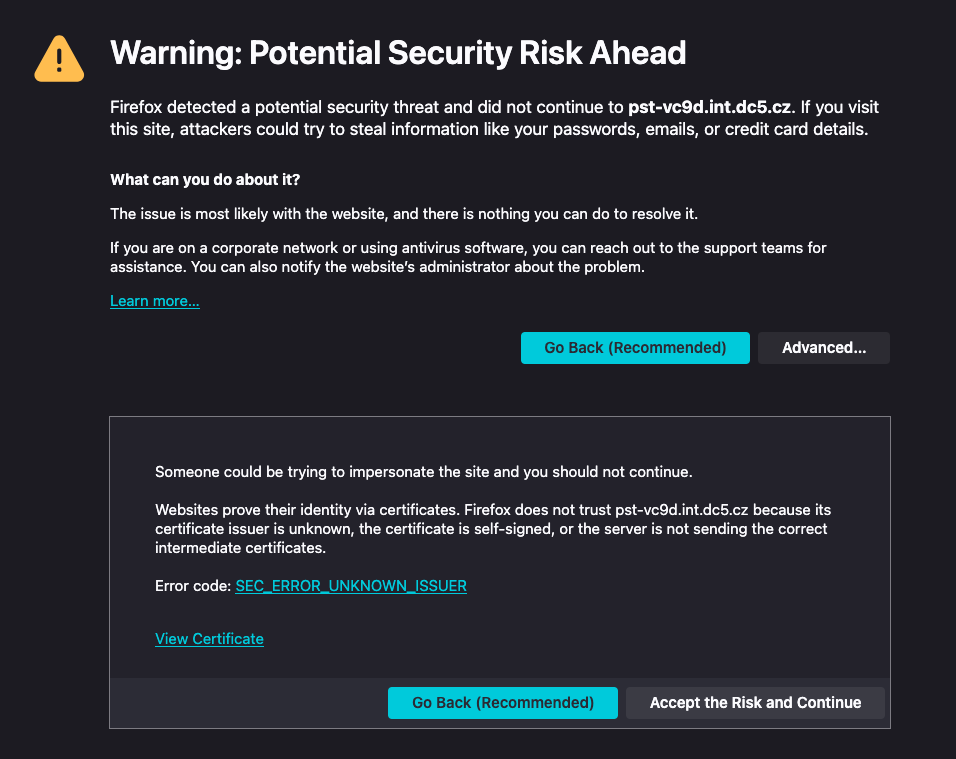
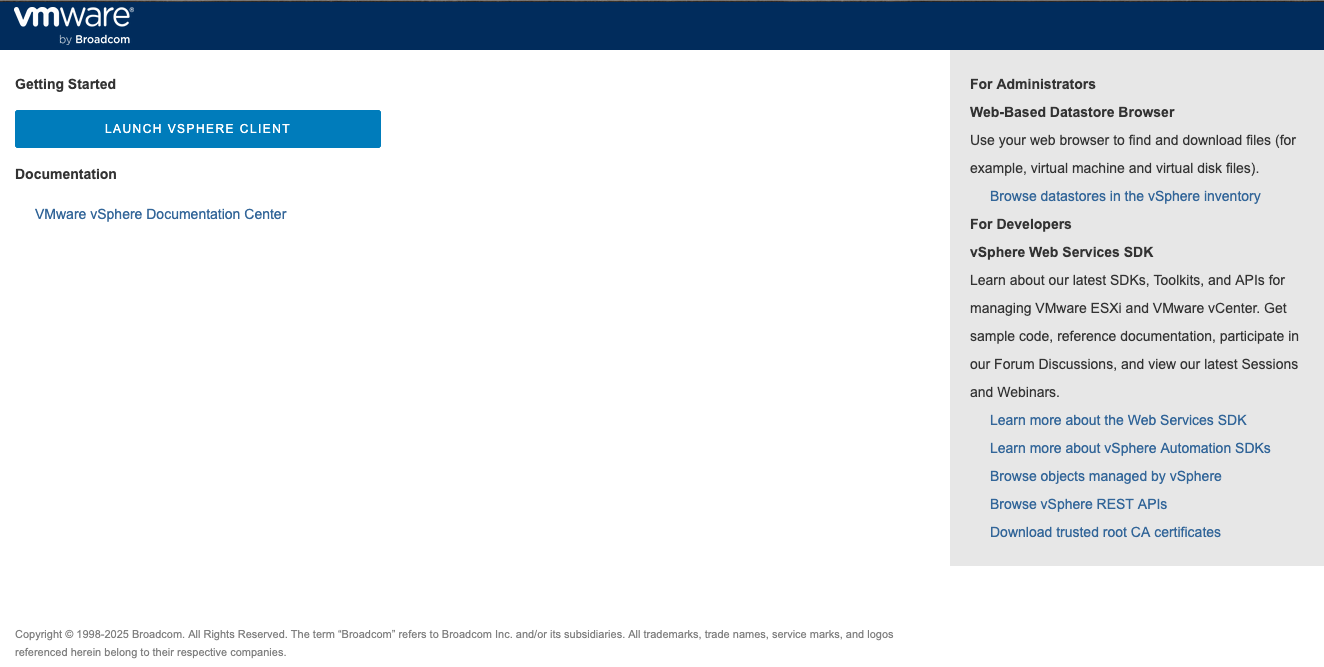
Accept SSL certificate as the initial SSL certificate is self-signed.

vCenter Web page

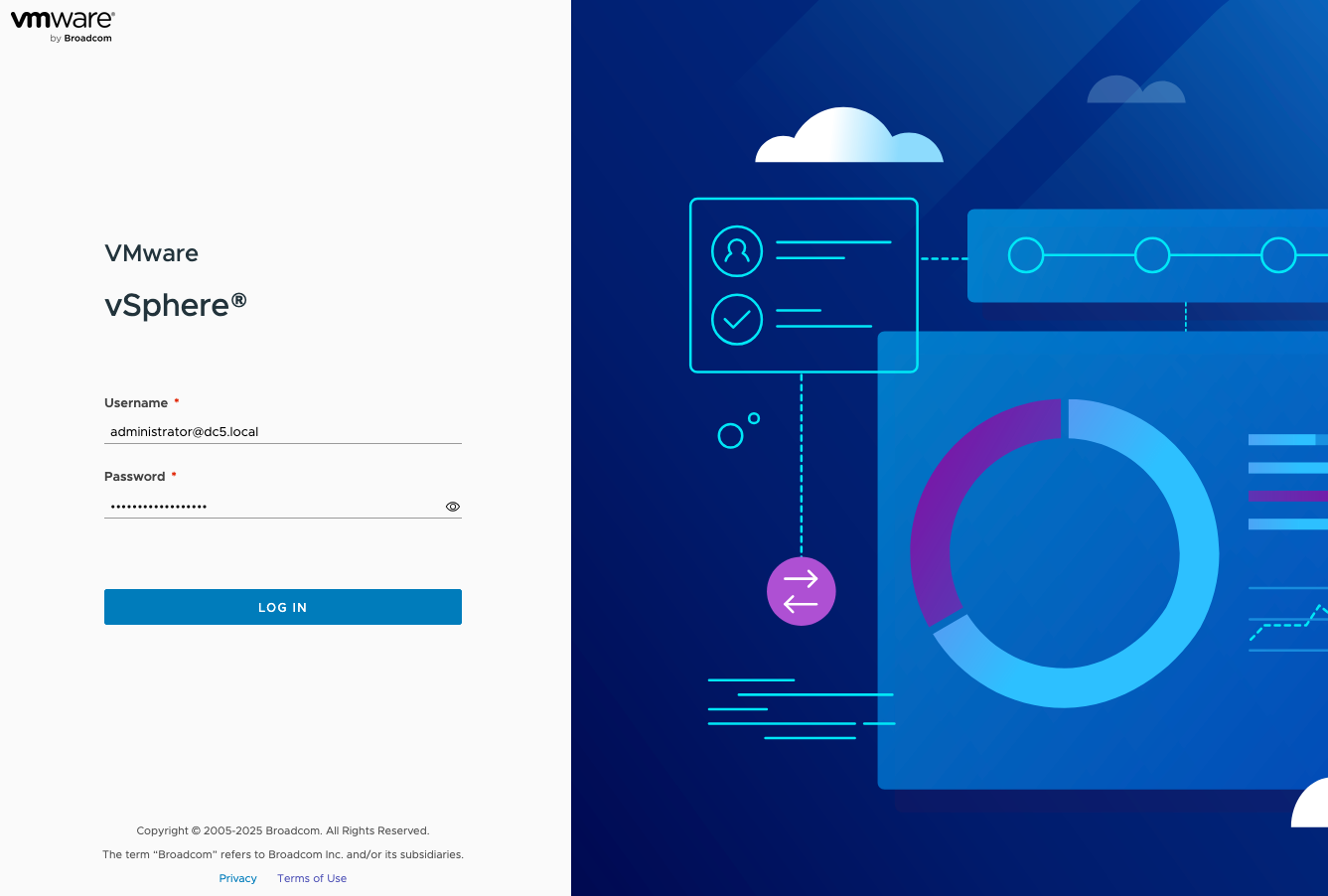
Login to the vCenter WebUI client

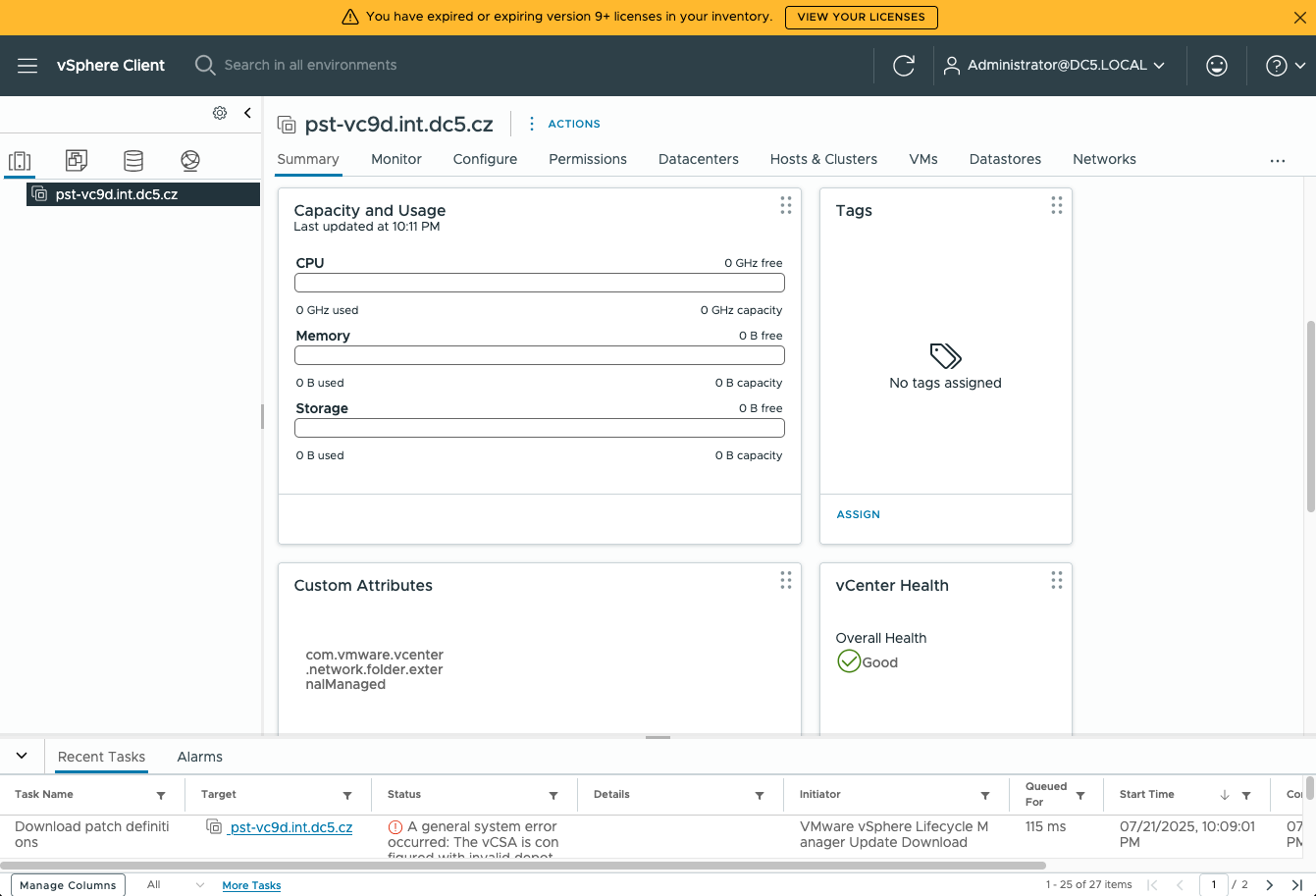
Welcome to your new vCenter 9.0

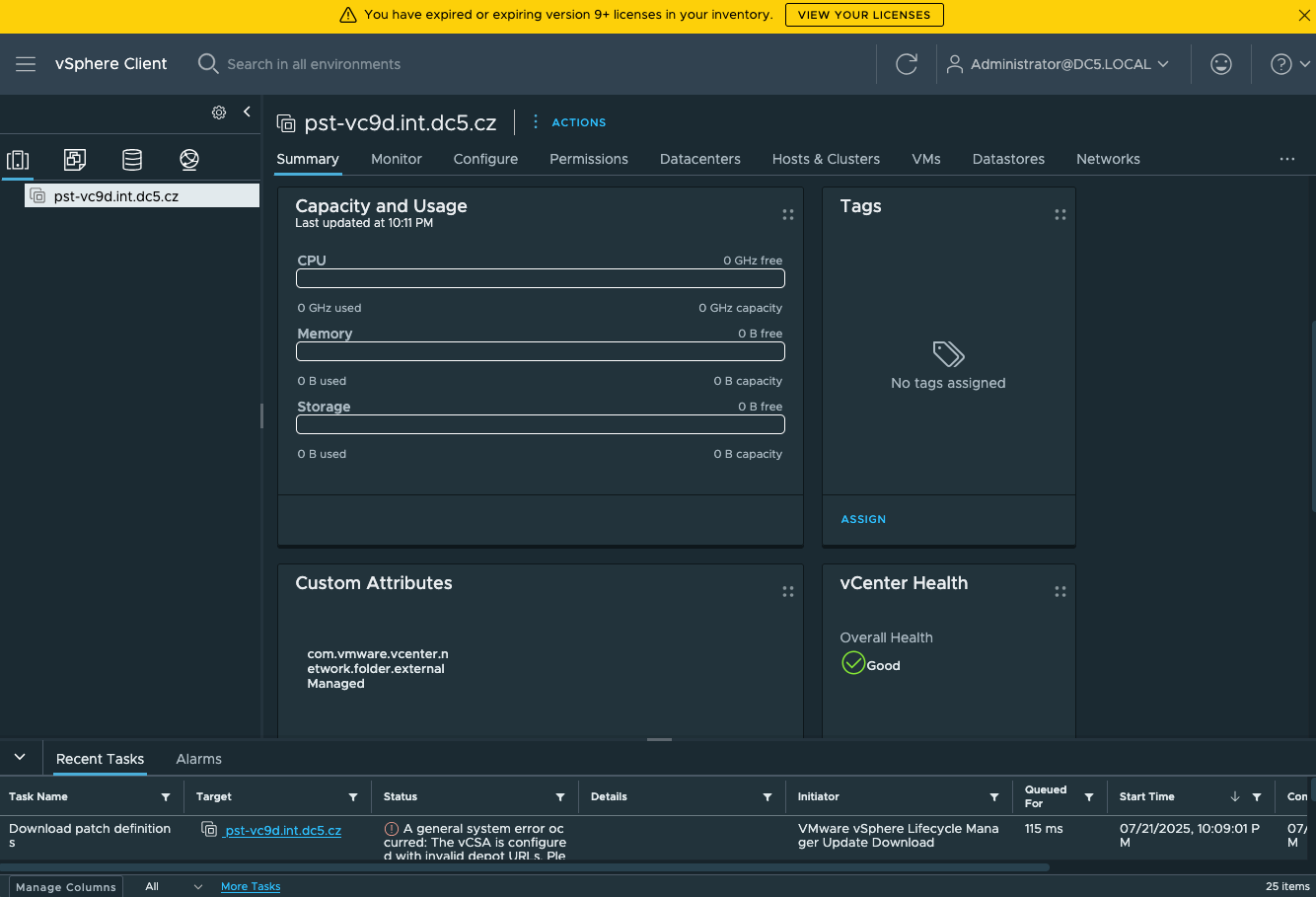
vCenter 9 in dark mode

Easily Identify Your vCenter Version and Update Needs with PowerShell (Get-vCenterVersion)

If you are working with VMware environments, particularly with vCenter Server, it’s important to keep track of the version and build number of your vCenter instances. This script/function, Get-vCenterVersion, is designed to help you retrieve these details effortlessly. Here, we’ll break down my script, explaining each section, and provide examples of how to use it.

Overview of the Script

The Get-vCenterVersion function is a PowerShell script that retrieves the version and build number of a specified vCenter Server. It compares the build number against a predefined mapping to provide detailed information about the vCenter version, release date, and other associated details. This can be extremely useful for maintaining and upgrading your VMware infrastructure.

You can find the full script linked at the end of this article. 🙂

Sections of the Script

  1. Script Header and Metadata
<#
    .SYNOPSIS
    This function retrieves the vCenter version and build number. 
    Based on https://knowledge.broadcom.com/external/article?legacyId=2143838

    .NOTES
    File Name      : get-vcenter-version.ps1
    Author         : Stanislav Musil
    Prerequisite   : PowerShell
    Website        : https://vpxd.dc5.cz/index.php/category/blog/
    X (Twitter)    : https://www.x.com/stmusil

    .DESCRIPTION
    The script is a function that takes a single parameter, the vCenter server name. Retrieves the version and build number. 
    To use the function, you can dot-source the script and then call the function. 
    Windows:   . .\get-vcenter-version.ps1
    Mac/Linux: . ./get-vcenter-version.ps1

    .EXAMPLE
    Get-vCenterVersion -vCenterServer "vCenter.DC5.cz"
    or
    Get-vCenterVersion
#>

This section provides a summary of what the script does, including the author’s information, and usage instructions. It also includes an example of how to invoke the function. This is a standard way to document PowerShell scripts and makes it easier for others to understand and use your script.

  1. Parameter Declaration
Param (
    [Parameter(Mandatory=$false)]
    [VMware.VimAutomation.ViCore.Util10.VersionedObjectImpl]$vCenterServer
)

Here, the script defines a parameter $vCenterServer, which is not mandatory. If the user does not provide a value, the script will use the default vCenter Server from the global environment variable $global:DefaultVIServer.

  1. vCenter Version Mappings
$vCenterVersionMappings = @{
    "24026615"="vCenter Server 7.0 Update 3r","17.06.2024","7.0.3.02000","24026615","24026615"
    "23788036"="vCenter Server 7.0 Update 3q","21.05.2024","7.0.3.01900","23788036","23788036"
    ...
}

This dictionary (hashtable) contains a mapping of vCenter Server build numbers to their corresponding versions, release dates, and other details. This is the core of the script, enabling it to look up detailed information based on the build number.

  1. Retrieving and Matching vCenter Build and Version
$vCenterServerVersion = $vCenterServer.Version
$vCenterServerBuild = $vCenterServer.Build
$vCenterVersion,$vCenterReleaseDate,$vCenterVersionFull,$vCenterReleaseDate,$vCenterMobVersion = "Unknown","Unknown","Unknown","Unknown","Unknown"
$vCenterName = $vCenterServer.Name

The script retrieves the version and build number from the provided or default vCenter Server. If the build number exists in the predefined mappings, the script retrieves the corresponding details.

  1. Outputting the Information
$out = [pscustomobject] @{
    vCenter_Name = $vCenterName;
    vCenter_Build = $vCenterServerBuild;
    vCenter_ReleaseName = $vCenterServerVersion;
    vCenter_MOB = $vCenterMobVersion;
    vCenter_VAMI = $VAMI;
    vCenter_Version_Full = $vCenterVersionFull;
    Release_Date = $vCenterReleaseDate;
}
$out

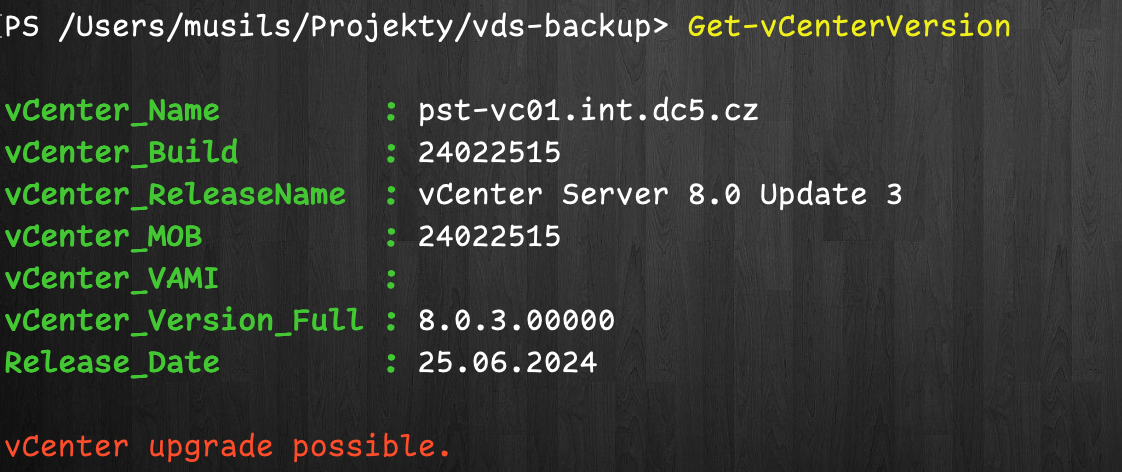
The script constructs a custom PowerShell object to output the details in a structured format. This makes it easy to further process or display the information.

  1. Upgrade Check
if ($vCenterServerBuild -lt $greatestKey) {
    Write-Host "vCenter upgrade possible. `n" -ForegroundColor Red
} elseif ($vCenterServerBuild -eq $greatestKey) {
    Write-Host "Latest version/ up to date. `n" -ForegroundColor Green
} else {
    Write-Host "Update this script, looks like it's outdated. `n"  -ForegroundColor Magenta
}

Finally, the script compares the retrieved build number with the highest build number in the mapping to determine if an upgrade is available, if the system is up to date, or if the script itself needs updating.

Example Usage

Example 1: Retrieve vCenter Version with Default Server

If you are already connected to a vCenter Server and set it as the default ($global:DefaultVIServer), you can simply run:

Get-vCenterVersion

Example 2: Specify a vCenter Server

To retrieve the version for a specific vCenter Server, provide the server’s name:

Get-vCenterVersion -vCenterServer "vCenter.DC5.cz"

This will output detailed information about the vCenter Server, including its version, build number, and release date. If the vCenter Server is not on the latest version, the script will suggest that an upgrade is possible.

My homelab:

Conclusion

The Get-vCenterVersion script is a powercli function for anyone managing VMware vCenter Servers. By automating the retrieval and checking of vCenter versions, it helps ensure that your infrastructure is always up to date and secure. Whether you’re managing a single vCenter Server or multiple instances, this script can save you time and reduce the risk of version mismatches.

Feel free to customize the script to fit your environment, and remember to keep the version mapping updated as new vCenter Server versions are released!

Source code is on GitHub:

https://github.com/musil/vSphere_scripts/blob/main/vCenter/get-vcenter-version.ps1